
Best Free AI Video Generators for Beginners
You want one short AI clip for a presentation, social post, or small-business idea—and you do not want to discover a paywall after writing the prompt.
There is no dependable unlimited free winner. Start with Canva if you already design there, try Adobe Firefly only if your account actually shows free video access, or use Runway's one-time free credits to test a few clips. Pika is not a practical ongoing free choice because its current free plan lists zero monthly credits.
Quick comparison
Information last verified: October 17, 2026. Plans and credits change often, so confirm the final price and available credits in your own account before starting an important project.
| Tool | Best for | Free option | Important limit | Beginner verdict |
|---|---|---|---|---|
| Adobe Firefly | Trying text-to-video in an Adobe workflow | Adobe advertises limited free generative use; actual video access can depend on the account | H5W's logged-in account showed “Upgrade to get access” for video, so free generation was not available in that session | Try it only if the Generate button works in your account |
| Runway | A short, more advanced trial | 125 one-time credits on the Free plan | Credits do not renew monthly; the plan includes 5GB storage and a limited model selection | Best for testing Runway, not for a recurring free workflow |
| Canva Magic Media | A simple clip placed directly into a social or presentation design | Limited AI uses are available to free users | Canva says generated clips are short; its help page describes four-second video output, and the exact free quota can vary | Easiest if your final design is already in Canva |
| Pika | People willing to buy credit packs | The Free plan currently lists zero monthly credits | No recurring free credits and no commercial license on the listed Free tier | Skip it if “free every month” is your requirement |
The most honest free recommendation is therefore conditional: Canva for convenience, Runway for a one-time trial, and Firefly only when your specific account has video credits.
What H5W found in a real account
H5W opened Adobe Firefly's Generate Video page in a logged-in account on October 17, 2026. The interface offered Firefly Video, 540p, 16:9, 24 fps, and a five-second duration. The Generate control was disabled and the account showed an upgrade message.
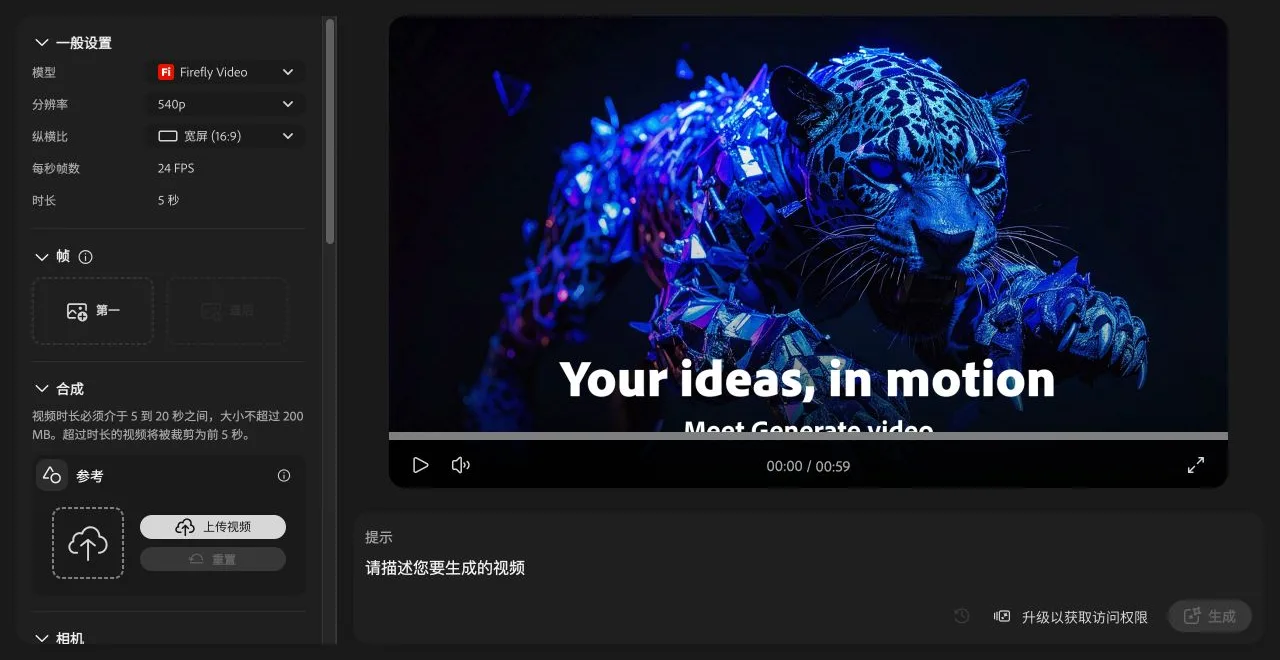
Adobe's public Firefly page also describes limited free generations across its creative tools. Both statements can be true: a product may advertise a free entry point while a particular account, region, model, or moment still requires an upgrade. Check the button you actually have—not just the marketing headline.
H5W did not spend paid credits or publish a generated clip for this comparison. The goal was to verify the free entry point before asking a beginner to invest time.
Pick the tool by the job
You need one quick clip inside a design
Start with Canva. It keeps the generated clip, text, logo, and other layout elements in one editor. This is useful for a social post or presentation slide. The tradeoff is that the AI clip is short and free usage is limited.
You want to test a dedicated AI video tool
Use Runway's free credits as a trial. Plan one or two short experiments instead of using all the credits on random prompts. Runway's free allocation is one-time, so it is not a sustainable free production plan.
You already use Adobe products
Open Firefly and check whether Generate is available. If your account shows an upgrade requirement, do not build your workflow around the advertised free option. Use Canva, the Runway trial, or a normal stock-video editor instead.
You need free clips every month
None of these tools is a safe promise. Limits, model access, queues, and credits change. A regular free workflow may be easier with your own photos, short phone video, public-domain footage, and a free editor.
Use one small test prompt
Before you commit to a tool, run the same harmless scene through each available free option.
Create a [DURATION]-second [ASPECT RATIO] video of [SUBJECT] doing [SIMPLE ACTION] in [SETTING].

Camera: [SHOT TYPE] with [ONE CAMERA MOVE OR STATIC].
Look: [LIGHTING AND COLOR].
Keep the subject consistent. Do not add text, logos, extra people, or recognizable brands.
The clip is for [PRESENTATION / SOCIAL POST / PERSONAL PROJECT].
Replace these fields
[DURATION]: use the tool's available duration, such as4or5.[ASPECT RATIO]:16:9for presentations or9:16for vertical social video.[SUBJECT],[SIMPLE ACTION], and[SETTING]: keep the first test easy to judge.[SHOT TYPE]: for example,wide shotorclose-up.[ONE CAMERA MOVE OR STATIC]: ask for one movement, not five.[LIGHTING AND COLOR]: ordinary visual direction such aswarm morning light.
The prompt was checked against the fields exposed by the tested Firefly interface, but generation could not run because the account required an upgrade. Treat it as an access-checked prompt, not a verified output claim.
Check these costs before choosing
- Renewal: Are credits monthly, daily, or one-time?
- Watermark: Can you download a clean clip on the free plan?
- Commercial use: Does the plan allow business use, or only personal experiments?
- Length and resolution: A free four-second or 540p clip may be fine for a draft but not a client deliverable.
- Queue and model access: Free users may wait longer or receive fewer models.
- Export: Make sure you can download a normal video file before doing the rest of the design.
Safety and copyright notes
Do not upload a customer's face, a child's image, confidential product material, or an unreleased campaign unless the service and account are approved for that data. Get permission before animating a real person. Avoid celebrity likenesses, brand characters, copyrighted footage, and prompts that imply a real person said or did something they did not.
For a lower-risk first project, generate a still image from text and place it in a simple motion template. When the clip is for a campaign, use it alongside a checked social media caption written with AI.
Sources and verification
- Runway pricing
- Adobe Firefly plans
- Adobe: Generative credits FAQ
- Canva: AI video generator
- Canva Help: Using Magic Media
- Pika pricing
Free-plan details were checked against official pages on October 17, 2026. H5W also performed the logged-in Firefly access check shown above. Pricing and access can change without notice.
Free printable resource
AI Answer Verification Checklist
Use the practical version while you work. It is a selectable-text U.S. Letter PDF with no email gate.
Public H5W PDF with selectable text and permanent source links.
Keep going
Choose your next step
Return to Create Visuals for the full collection, or continue with a closely related guide.