
How to Create a Job Application Tracker With AI
You applied for three jobs this week, saved two more, and changed your resume twice. Now one company has replied, but you cannot remember which resume it received or when you planned to follow up.
Make one simple spreadsheet. Keep one verified opening per row, record the version you actually sent, and give every application one clear next action. AI can turn facts you supply into a clean row. It should never guess a deadline, contact, interview date, or result.
The quickest setup
Open Google Sheets or Excel and create these columns:
| Column | What belongs there |
|---|---|
| Company | The employer's name |
| Job title | The exact title from the verified posting |
| Official job URL | The employer's own careers-page link when available |
| Location | City, state, remote, or hybrid wording from the posting |
| Date saved | When you added the opening to the tracker |
| Date applied | Leave blank until you submit |
| Status | Saved, Applied, Follow-up sent, Interview, Offer, Rejected, Withdrawn, or Closed |
| Resume version | The exact filename you sent |
| Contact | A verified recruiter or hiring contact, if you have one |
| Next action | The next thing you need to do |
| Follow-up date | A date you chose based on the employer's timeline—not an AI guess |
| Interview date | Leave blank until it is confirmed |
| Notes | Short facts you will need later |
That is enough for most people. Do not start with a dashboard, five tabs, or an automatic score for every job.
Download the H5W job application tracker. It opens in Excel and can be imported into Google Sheets. Delete the fictional sample row before using it.
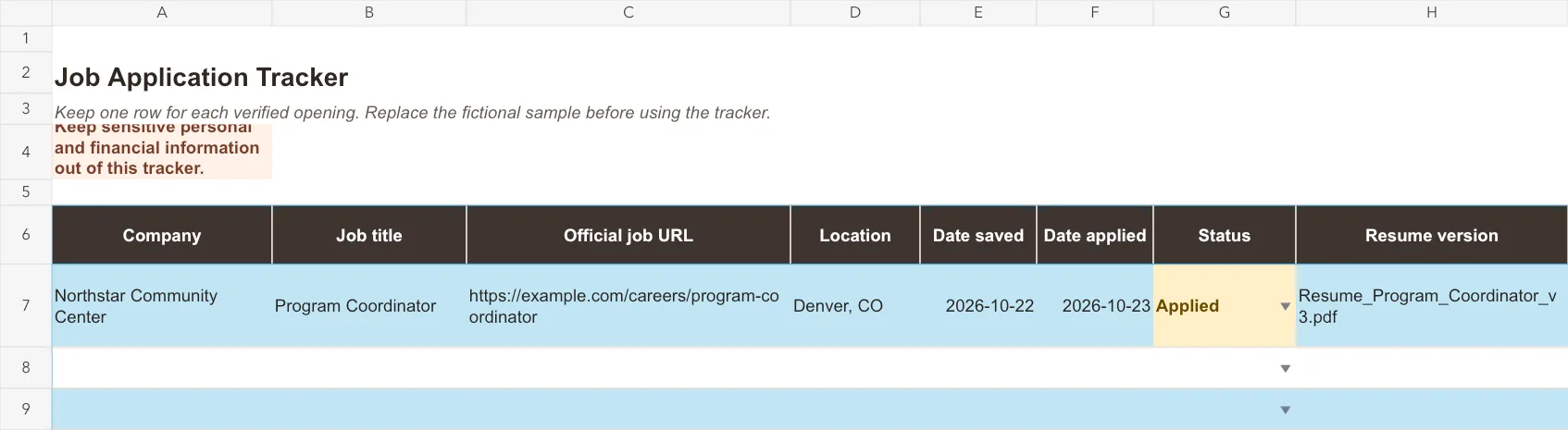
The downloadable workbook contains fictional sample data. It does not include a real employer or applicant.
Add the first job yourself
Before using AI, enter one application manually. This makes the system easy to understand.
- Verify the opening on the employer's official website.
- Save the job description or a PDF copy for your own records.
- Paste the official URL into the tracker.
- Record the date you applied only after the application is submitted.
- Copy the exact resume filename you sent.
- Write one next action, such as
Finish application,Prepare for phone screen, orCheck employer timeline before following up.
If a fact is unknown, leave it blank. A blank cell is more useful than a confident-looking guess.
Copy this prompt to add one job
Use this when the facts are scattered across your notes and you want one row you can paste into a spreadsheet.
Help me add one job to a simple application tracker.

Use only the facts below. Do not guess a deadline, contact, follow-up date, interview date, or application result. If a field is missing, write [NOT PROVIDED]. Use dates in YYYY-MM-DD format.

Return exactly one tab-separated row in this column order:
Company | Job title | Official job URL | Location | Date saved | Date applied | Status | Resume version | Contact | Next action | Follow-up date | Interview date | Notes

After the row, add a short section called Check before saving and list anything I should verify.

Job facts:
- Company: [COMPANY]
- Job title: [JOB TITLE]
- Official job URL: [OFFICIAL JOB URL]
- Location: [LOCATION]
- Date saved: [DATE SAVED]
- Date applied: [DATE APPLIED OR NOT PROVIDED]
- Status: [STATUS]
- Resume version: [RESUME VERSION OR NOT PROVIDED]
- Contact: [CONTACT OR NOT PROVIDED]
- Next action: [NEXT ACTION]
- Follow-up date: [FOLLOW-UP DATE OR NOT PROVIDED]
- Interview date: [INTERVIEW DATE OR NOT PROVIDED]
- Notes: [SHORT NOTES]
Replace these fields
[COMPANY],[JOB TITLE], and[LOCATION]: copy them from the verified posting.[OFFICIAL JOB URL]: use the employer's careers page when possible, not a link generated by AI.[DATE SAVED]and[DATE APPLIED]: use the dates from your own records.[STATUS]: choose one of your tracker statuses.[RESUME VERSION]: use the actual filename, such asResume_Program_Coordinator_v3.pdf.[CONTACT],[FOLLOW-UP DATE], and[INTERVIEW DATE]: writenot providedwhen you do not know them.[NEXT ACTION]: give yourself one specific task.[SHORT NOTES]: keep only facts you will need later.
The instruction to write [NOT PROVIDED] matters. It keeps a missing fact visible instead of letting AI quietly manufacture one.
What happened in H5W's test
H5W tested the prompt in a logged-in Gemini session on October 24, 2026. The test used a fictional community center, a Program Coordinator role, a placeholder example.com URL, two dates, and a made-up resume filename. Contact, follow-up date, and interview date were deliberately missing.
Gemini:
- converted both supplied dates to
YYYY-MM-DD; - kept the supplied
Appliedstatus and resume filename; - wrote
[NOT PROVIDED]for the three missing fields; - did not invent an interview or application result;
- told the tester to verify the contact and choose a follow-up date.
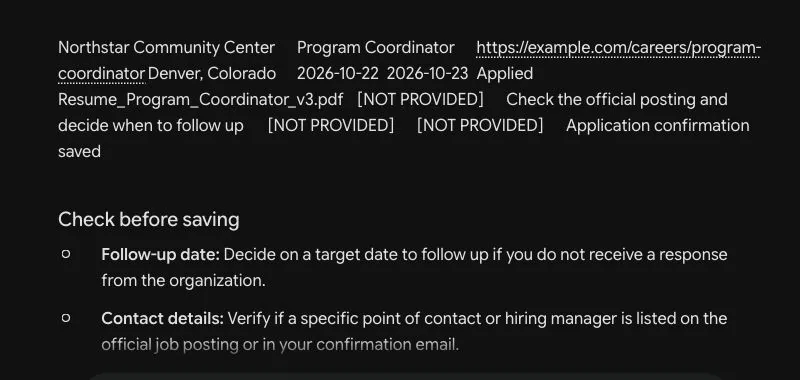
Real Gemini interface, cropped to remove the account, avatar, sidebar details, and prompt history. The employer, job, URL, and applicant record are fictional.
The output still needed a human check. example.com is not a real job posting, and an AI suggestion about following up is not an employer deadline. The tracker should preserve what you know, not make an imaginary application look complete.
Paste the row into Google Sheets or Excel
- Copy only the tab-separated row, not the
Check before savingnotes. - Click the first empty cell under
Company. - Paste. The fields should spread across the columns.
- Compare each cell with the original posting, confirmation email, and file you sent.
- Replace
[NOT PROVIDED]with a verified fact later, or leave the cell blank.
If everything lands in one column, use your spreadsheet's split-text feature and choose a tab as the separator. Do not keep changing the prompt if manual entry would take less time.
Google Sheets supports tables with column types such as dates and dropdowns. You can also add a dropdown to the Status column. These controls reduce inconsistent entries such as Interview, interviewing, and Round 1 describing the same stage.
Keep the tracker useful in five minutes a week
Choose one regular time each week and review every active row.
- Confirm that saved openings still exist on the official employer site.
- Add the application date and resume version after submitting.
- Change the status when something actually happens.
- Record the confirmed interview date.
- Add one next action.
- Close rows you no longer plan to pursue.
Do not treat silence as rejection unless the employer says the role is closed or you decide to stop pursuing it. Use Closed for your own workflow and a short note explaining why.
Before adding an unfamiliar remote role, use H5W’s AI training job scam checklist to verify the company, recruiter, payment request, and official opening.
What not to put in the tracker or AI prompt
Keep this spreadsheet useful, not dangerous. Do not store:
- Social Security, tax, passport, driver's-license, or banking information;
- passwords, one-time codes, or job-board login details;
- private reference details unless the person agreed and you truly need them;
- background-check documents;
- sensitive health, disability, family, or immigration information;
- confidential information from your current employer;
- full email threads when one short factual note is enough.
The Federal Trade Commission warns that fake recruiters and copied job ads may seek money or personal information. Verify the opening on the employer's own website before adding it, and never treat an organized tracker row as proof that a job is real.
If you already lost track
Do not rebuild everything at once. Start with the last two weeks.
Search your email for application confirmations, then check your downloads folder for resume filenames. Add only applications you can verify. When a date or version is unclear, write Unknown—check records instead of choosing the most likely answer.
Once the recent applications are clean, work backward only if the old records still matter.
Next steps
- Use How to Improve Your Resume With AI before recording a new resume version.
- When an application moves forward, use How to Prepare for a Job Interview With AI.
- Return to the AI for Jobs hub for the rest of the job-search path.
Sources and verification
Information last verified: October 24, 2026.
- UC Davis Career Center: Job Search Strategies
- Google Docs Editors Help: Use tables in Google Sheets
- Google Docs Editors Help: Create an in-cell dropdown list
- Federal Trade Commission: Scammers are hijacking job ads
- Federal Trade Commission: That job offer text is probably a scam
Hands-on test completed October 24, 2026, using fictional job and applicant data. H5W checked the AI row against the supplied facts, pasted the result into the downloadable workbook, verified its dates and missing-field handling, and scanned the XLSX for formula errors.
Keep going
Choose your next step
Return to Jobs for the full collection, or continue with a closely related guide.