
Are AI Agents Safe? 7 Things to Check
You are trying a new AI assistant. It asks to connect your inbox or calendar so it can find messages, prepare replies, or create events. The button says Connect, but the important question is what happens after you press it.
The short answer: an AI agent can be reasonable for a narrow, supervised task. It becomes riskier when it can read a large amount of private information, make changes, or act without asking. Start with one low-risk connection, use the least access available, and keep approval turned on for anything that sends, deletes, shares, books, or changes data.
The seven checks to make before connecting
1. Confirm which account you are connecting
Look at the email address on the authorization screen. A personal account, work account, and school account can contain very different information.
Do not connect a work or school account just because the button is available. Your employer or school may have rules about approved AI services, confidential information, retention, and connected apps.
2. Connect only the service the task needs
If the job is to find a free time on your calendar, the agent does not also need your email, contacts, files, and photos.
Choose fewer apps when the setup allows it. OpenAI's current account-connection guidance, for example, tells users to review each selected service and notes that some Google connections let you choose fewer apps before approving access.
3. Read the permissions, not just the feature description
“Help with email” is marketing language. The permission screen is where you may learn whether the tool can:
- read messages or calendar events;
- create or edit events;
- send mail or invitations;
- modify, move, or delete information; or
- keep access after the current session.
If the requested access is broader than the job, stop. Do not assume you can limit it later.
4. Require approval before the agent acts
Reading a calendar to suggest a time is different from creating an event and inviting other people.
Use Always ask, Ask before acting, or the closest available setting. OpenAI currently distinguishes read access from actions and warns that an “allow all actions” setting carries elevated risk. Microsoft likewise describes connectors and task tools as working with services you authorize, including email and calendar.
Keep a person in the loop before the agent:
- sends an email or message;
- creates, changes, or cancels an event;
- shares a file;
- deletes or moves information;
- makes a purchase or booking; or
- changes access or security settings.
5. Test with harmless data first
Do not begin with your real inbox.
Make a temporary calendar event with fictional details, such as “Test appointment, Tuesday at 2:00 PM.” Ask the agent to find it or suggest a change. Check what it read, what it proposed, and whether it asked before making the change.
If the test is confusing, the real connection will not become safer simply because the task is more important.
6. Check data use separately from permissions
Permission answers what the agent can reach. Privacy settings answer different questions: whether results remain in chat history, whether memory is used, how long information is retained, and whether data may be used to improve a service.
These rules vary by product, account type, plan, and workspace. For example, Microsoft's consumer Copilot connector documentation says connected data is not used to train Copilot, while Google's help pages describe different data treatment for Gemini Connected Apps and Gemini inside Workspace products. Read the page for the exact service and account you use.
7. Know how to disconnect and revoke access
Turning off an agent feature may not remove the authorization held by the email or calendar provider.
OpenAI's current help page makes this distinction explicit: changing an app permission does not disconnect the app or revoke access already granted to the provider account. Google also provides a Linked Apps area where you can review and remove third-party connections.
Before connecting, find both controls:
- the agent's Apps, Connectors, or Connected accounts page; and
- the email or calendar provider's Third-party access or Linked apps page.
If you cannot find a clear way to remove the connection, do not add it yet.
A quick risk guide
| What you want the agent to do | Starting risk | Safer setup |
|---|---|---|
| Read one harmless calendar event | Lower | Separate test calendar, read-only access, approval required |
| Summarize selected emails | Medium | Personal test account, limited inbox, no send or delete permission |
| Draft an email for you to review | Medium | Agent drafts; you copy, check, and send it yourself |
| Send email or invitations automatically | Higher | Avoid at first; require approval for every recipient and message |
| Manage a work inbox, shared drive, or customer records | Higher | Use only an organization-approved tool and administrator policy |
| Delete files, change permissions, buy, book, or publish | High | Keep manual control; do not enable blanket approval |
“Read-only” is a safer starting point, not a guarantee. A private email or calendar can still reveal names, travel, health appointments, customer details, reset messages, invoices, and confidential work.
What happened in H5W's permission test
H5W applied the seven checks to three fictional connection requests. No real inbox, calendar, provider account, or personal information was used.
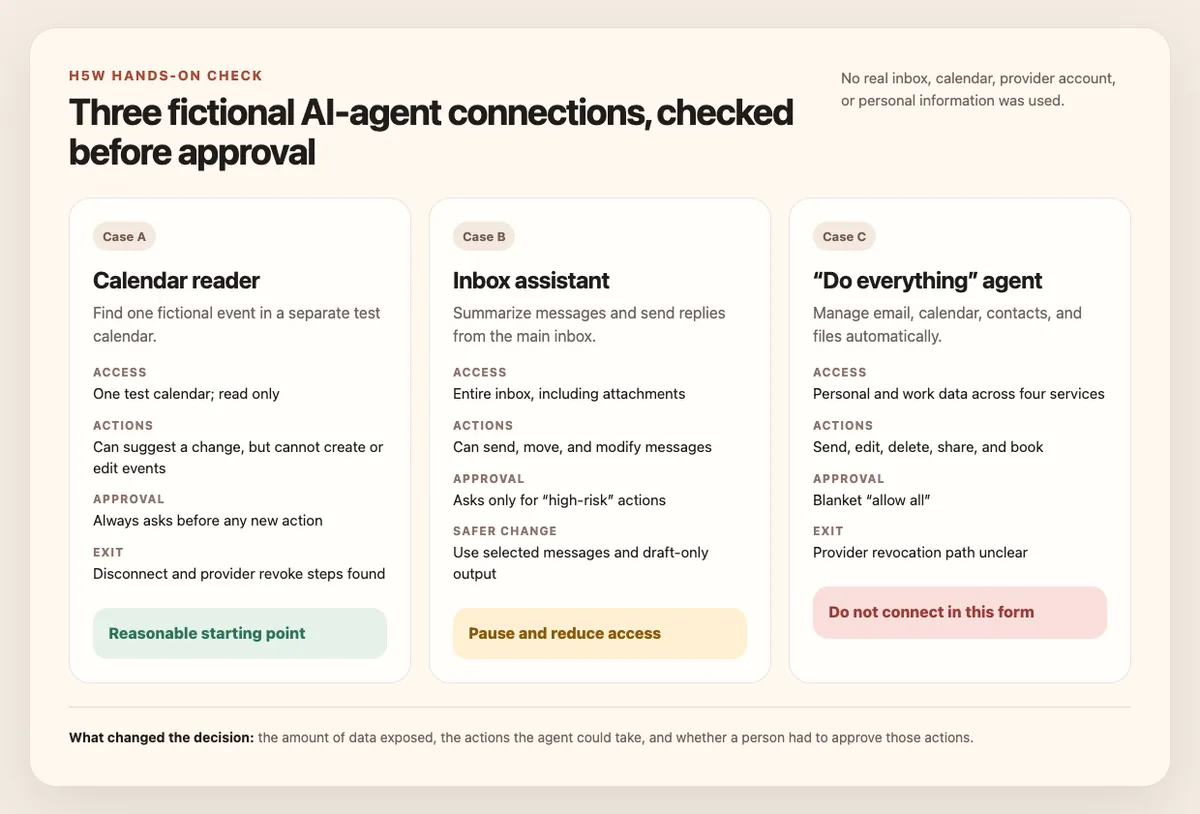
- Calendar reader: one test calendar, read access, and approval before changes. Result: a reasonable place to start.
- Inbox assistant: access to an entire inbox plus permission to send messages. Result: pause and reduce the scope; draft-only is safer.
- “Do everything” agent: email, calendar, files, and automatic actions with blanket approval. Result: do not connect in that form.
The useful dividing line was not the product name. It was the combination of data access, action power, and human approval.
The safest practical setup for most beginners
If you still want to try an agent, use this order:
- Start with a personal test account or separate test calendar—not your main work account.
- Connect one service only.
- Choose read-only access when available.
- Keep approval required for every action.
- Give it one harmless, reversible task.
- Check the result and the account's activity or sent items.
- Disconnect it when the test is over if you do not expect to use it regularly.
You can copy this checklist into a note before opening the permission screen:
Account: [PERSONAL / WORK / SCHOOL]
Task: [WHAT I WANT THE AGENT TO DO]
Services requested: [EMAIL / CALENDAR / FILES / OTHER]
Can it read? [YES / NO / UNCLEAR]
Can it create, send, edit, or delete? [LIST ACTIONS]
Does it ask before acting? [ALWAYS / SOMETIMES / NO]
Test data only? [YES / NO]
Disconnect and provider-revoke steps found? [YES / NO]
If any important answer is unclear, pause. The feature can wait.
If you already connected an agent
Do not panic. Review the connection while you still remember why you enabled it.
- Open the AI product's Apps, Connectors, or Connected accounts settings.
- Reduce permissions or switch back to asking before actions when those controls exist.
- Disconnect services you no longer use.
- Open the email/calendar provider's linked-app page and remove access there if needed.
- Check Sent, Deleted, Calendar, Sharing, and account-activity areas for changes you did not expect.
- Change your password if you entered it anywhere other than the real provider's sign-in page. Revoking an OAuth connection normally does not require changing the password.
For especially sensitive material, review H5W's list of information you should never share with AI. If the connection involves files, also check whether it is safe to upload documents to AI.
Frequently asked questions
Can an AI agent read all my old email?
It depends on the permissions, product, account, and task. Do not assume it sees only the message you mention. Read the provider authorization screen and the agent's own connected-app documentation.
Is calendar access less risky than email access?
Often, but calendars can still contain names, addresses, meeting links, travel, medical appointments, and private notes. A separate test calendar is safer than granting access to your main calendar.
Is an agent safe if it asks for confirmation?
Confirmation reduces risk, but it does not make every action safe. Read the preview carefully. Do not approve a vague request, unexpected recipient, broad file share, or action you cannot undo.
Does disconnecting delete information already used in a chat?
Not necessarily. Disconnecting controls future access. Conversation history, retention, memory, and deletion are separate settings, so check the product's current privacy documentation.
Sources and verification
Information last verified: October 26, 2026.
- OpenAI: Managing app permissions in ChatGPT
- OpenAI: Connecting and managing app accounts in ChatGPT
- OpenAI: Google app data controls FAQ
- Google: Use and manage Connected Apps in Gemini
- Google Account Help: Manage your linked apps
- Microsoft: Connecting Microsoft Copilot to other services
H5W's hands-on check used three fictional permission requests and no real connected account. Product controls can change, so recheck the exact permission screen you see before approving it.
Keep going
Choose your next step
Return to Safety & Privacy for the full collection, or continue with a closely related guide.