
How to Fix a Spreadsheet Formula Error With AI
One cell says #REF!, #VALUE!, or #DIV/0!, and now you are afraid to touch the formula that feeds the rest of the sheet.
Do not upload the whole workbook first. Make a copy, then give the AI the exact error, the formula, what each referenced cell contains, and what you expected the result to be. Ask for an explanation before accepting a replacement formula.
The repair is not finished until you test it with values whose answer you can calculate yourself.
Start with a small example
Suppose cell D2 shows #VALUE! and contains:
=B2*C2Tell the AI that B2 should be a quantity, C2 should be a price, and one of those cells may contain text. That context is more useful than saying, “Fix my spreadsheet.”
If the problem happens only on one row, paste that row with invented or masked values. Share the minimum needed to understand the formula.
Use this prompt
I am using [Excel or Google Sheets]. A cell shows
[exact error].Formula:
[paste formula]What the cells mean:
– B2 = [meaning and example value]
– C2 = [meaning and example value]
– D2 should equal [expected result]
Explain the likely cause in plain English. Give me the smallest safe correction. Do not change unrelated columns or hide the error with
IFERRORunless you explain what underlying problem would remain.Also give me three test cases, including one blank or unusual value, so I can check the repair on a copy.
The line about IFERROR matters. Hiding an error can make a sheet look clean while leaving the wrong data underneath.
What the common errors usually mean
Microsoft lists several standard Excel errors. These three are a good place to start:
#REF!usually means the formula points to a cell reference that is no longer valid, often after rows or columns were deleted or moved.#VALUE!often means the formula received the wrong kind of value, such as text where it expected a number.#DIV/0!means the formula tried to divide by zero or by a blank cell treated as zero.
A circular-reference warning is different. It means a formula depends on itself, directly or through other cells. In desktop Excel, Microsoft directs users to Formulas → Error Checking → Circular References and suggests Trace Precedents or Trace Dependents when the chain is hard to see. Excel for the web may have fewer auditing tools.
Do not let an AI turn on iterative calculation just to silence a circular-reference warning unless you understand why that workbook intentionally needs repeated calculation.
Test the repair before you copy it down
Use three simple rows:
- normal values with an answer you can calculate manually;
- a zero or blank value;
- a value at the edge of what the sheet should accept.
Check the displayed answer and the underlying formula. Then copy the correction to one additional row—not the whole column—and check again.
If the formula involves dates, confirm the date order. 09/02/2026 can mean September 2 or February 9 depending on the spreadsheet's locale. If it involves currency, confirm whether tax, rounding, and exchange rates belong inside or outside the formula.
For broader data cleanup, continue with How to Clean Up a Spreadsheet With AI Without Breaking the Data.
When uploading the workbook may help
An upload can be useful when formulas span several sheets or the AI needs to inspect headers and data types. OpenAI's current documentation says spreadsheet uploads are available on free and paid ChatGPT plans, subject to plan, account, region, and workspace limits. Limits can change.
Before uploading, work on a duplicate and remove customer names, account numbers, payroll, confidential prices, health data, employee records, passwords, and hidden sheets you do not need. OpenAI's Data Controls let users turn off model improvement for new conversations, but your employer or client may still prohibit uploading the workbook.
If the data came from a document, How to Extract a Table From a PDF With AI explains how to verify the numbers before they reach the sheet.
Stop when the model is guessing
Use Excel's own auditing tools or ask a spreadsheet specialist when the formula uses macros, named ranges you cannot identify, links to other workbooks, financial forecasts, tax calculations, or a long chain of dependent cells.
An AI explanation is useful because it can translate formula syntax into ordinary language. It cannot prove that the business rule behind the formula is correct.
What happened in H5W's real test
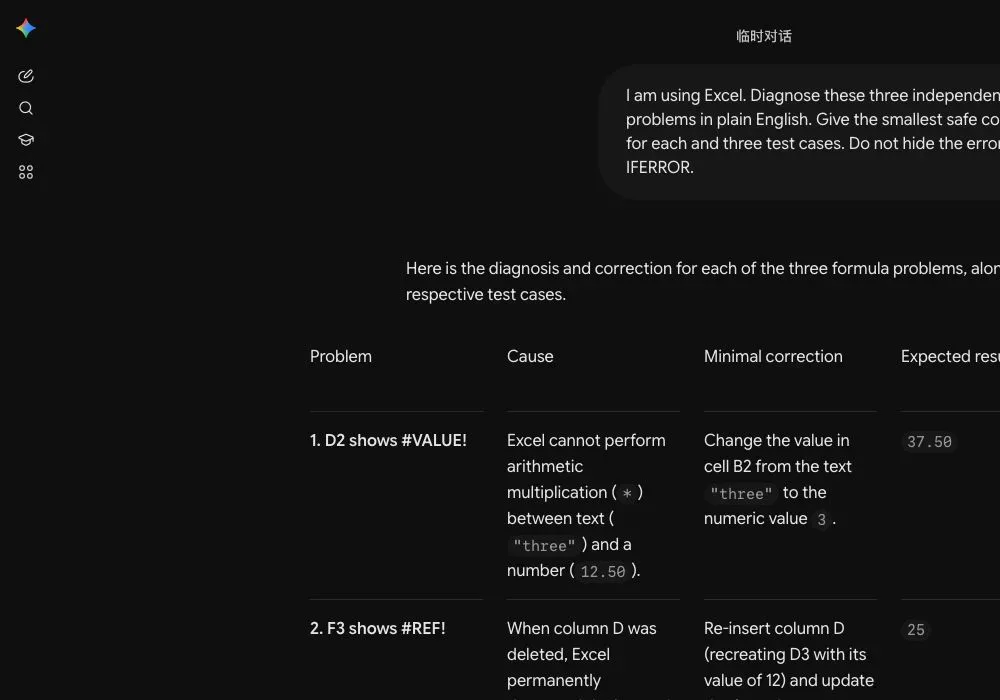
On October 13, 2026, H5W gave a logged-in Gemini temporary chat three fictional Excel problems. It correctly changed the word three to the number 3 for a result of 37.50, restored the supplied missing value before rebuilding =SUM(C3:E3) for 25, and removed G4 from its own range with =SUM(B4:F4) for 20.
There was still an important lesson. In one run, Gemini suggested VALUE(B2) as an alternative even though Excel cannot turn the English word three into the number 3 that way. And it could rebuild the deleted D3 only because the prompt supplied its old value. A #REF! formula alone cannot recover deleted data.
Fix the cause, not the warning
The safest workflow is small: identify one formula, explain the cells, repair a copy, and test known values. Once the result is correct, document what changed before applying it elsewhere.
Sources and verification
Information last verified: October 13, 2026.
- Microsoft: Detect formula errors in Excel
- Microsoft: Remove or allow a circular reference in Excel
- Microsoft: Overview of formulas in Excel
- OpenAI: Uploading files and audio to ChatGPT
- OpenAI: Data controls in ChatGPT
Official facts and the real logged-in Gemini workflow were checked on October 13, 2026. The screenshot shows the tested interface, not a generated mockup.
Free printable resource
Spreadsheet and Data QA Checklist
Use the practical version while you work. It is a selectable-text U.S. Letter PDF with no email gate.
Public H5W PDF with selectable text and permanent source links.
Keep going
Choose your next step
Return to Work for the full collection, or continue with a closely related guide.