How to Extract Text From a Photo or Screenshot With AI
You have a photo of a printed page, sign, receipt, or screen. The text is visible, but you cannot select it.
Try the text-recognition feature already built into your phone or computer first. Use an AI image tool when you also need the text cleaned up, organized, or explained. In either case, compare names, dates, prices, totals, codes, and unusual characters with the image before using them.
Do not upload a private ID, bank statement, medical record, school record, access code, or another person's message to a general AI tool just to avoid retyping it.
The fastest option may already be on your phone
On supported Apple devices, Live Text can recognize text in photos, paused videos, the Camera app, Safari, and other views. Open the image, select the detected text, and copy it into Notes or another app.
That is often enough for a paragraph, address, serial number, or simple list. It also avoids asking a general chatbot to interpret the whole image.
Other phones and photo apps offer similar OCR features. Names and buttons change, but the basic action is usually select text, copy text, or a scan/Lens icon.
When an AI image tool is more useful
Use ChatGPT or another image-capable AI when you need help with structure, for example:
- putting a photographed list into rows;
- separating two columns that were mixed together;
- preserving headings and bullets;
- turning a screenshot into a checklist;
- identifying uncertain words so you know what to inspect.
OpenAI's current documentation says ChatGPT accepts image inputs on free and paid plans, subject to plan and account limits. Supported still-image formats include PNG, JPEG, and non-animated GIF. Availability and limits can change, so verify them again when publishing.
Copy this prompt
Extract the visible text from this image.
Preserve headings, paragraphs, bullets, and table rows where possible. Do not correct names, numbers, dates, prices, codes, spelling, or punctuation unless I ask.
Put
[UNCLEAR]anywhere a character cannot be read confidently. At the end, list every line containing a name, number, date, price, total, email address, web address, or code so I can compare it with the image.
If the image has two columns, tell the AI which column should be read first. If it contains a table, ask for plain rows before asking for CSV. Otherwise, a tool may guess the reading order and join unrelated lines.
Make the image easier to read
Before uploading or scanning:
- crop away the desk, browser tabs, and unrelated messages;
- straighten the page;
- avoid glare and shadows;
- move closer instead of using heavy digital zoom;
- photograph one page at a time;
- split tiny text into two or three images;
- keep the original image until the text has been checked.
For multiple pages, How to Scan Paper Notes Into a PDF With ChatGPT may be the better workflow.
Check the characters that cause expensive mistakes
OCR can confuse:
0andO;1, lowercasel, and uppercaseI;5andS;- decimal points and commas;
- hyphens and minus signs;
- quotation marks and apostrophes;
rnandm;- dates written in different regional orders.
Read totals and reference numbers character by character. For a receipt, recalculate the arithmetic. For a web address, type or paste it into the address bar but inspect the destination before signing in. For a quote or academic source, compare the wording with the original image.
Handwriting needs extra caution. A confident-looking transcription can still be wrong. If the note matters, ask the writer or another person to confirm it.
Keep private images on the device when possible
Built-in OCR may be the safer and simpler choice when you only need to copy text. If you use an online AI service, crop out faces, account details, notifications, names, addresses, QR codes, barcodes, and anything outside the needed section.
OpenAI explains that the use of uploaded images for model improvement depends on the product and the account's data settings. Its Data Controls let signed-in users turn off “Improve the model for everyone” for new conversations. Uploaded files may also be retained separately depending on the feature and workspace.
Read Is It Safe to Upload Documents to AI? before sending a sensitive image.
What happened in H5W's real test
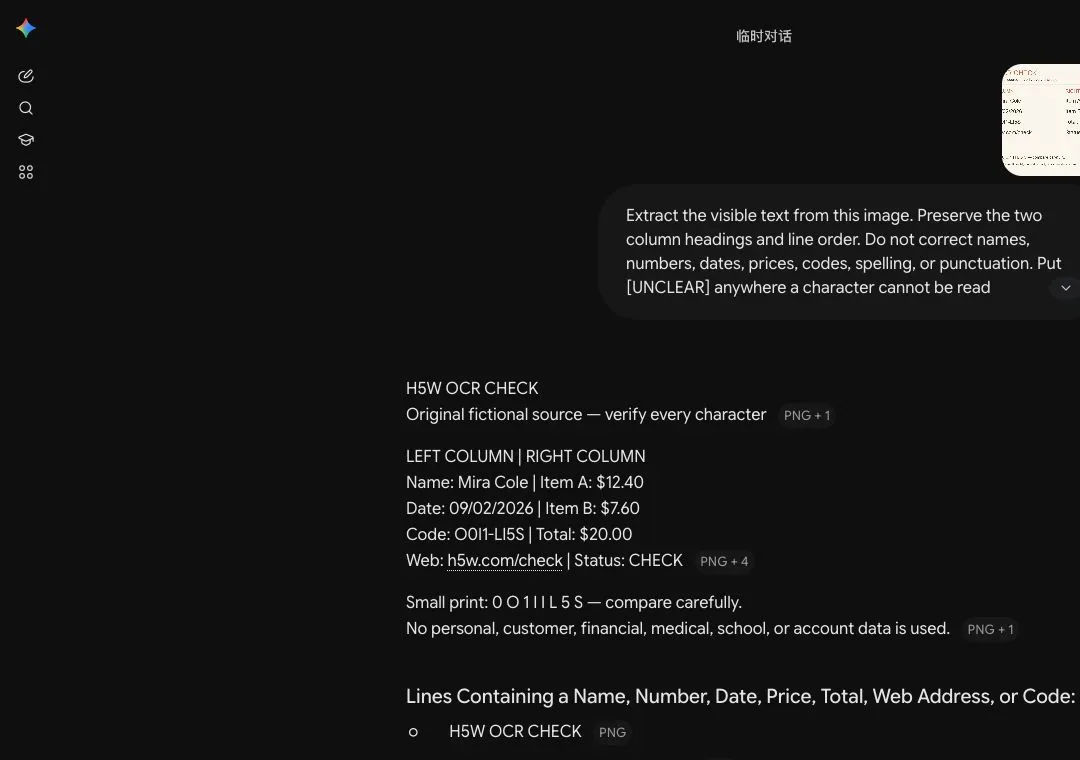
On October 13, 2026, H5W uploaded an original, privacy-safe test image to a logged-in Gemini temporary chat. Gemini kept the two columns separate and correctly copied the name, date, web address, two prices, and total.
It still made the exact kind of error that matters: the source code was O0I1-Ll5S, but Gemini returned O0I1-LI5S, changing the lowercase l after the hyphen to an uppercase I. The prices and total were right, but the code was not. For reference numbers, URLs, and serials, compare character by character even when the rest of the extraction looks perfect.
Copy first, trust later
Image-to-text tools save time when the alternative is retyping. They do not turn a blurry or private image into a trustworthy record. Use built-in OCR when it solves the job, use AI for structure when needed, and keep the image beside the text until the important characters match.
Sources and verification
Information last verified: October 13, 2026.
- Apple: Use Live Text to interact with content in a photo or video
- OpenAI: ChatGPT Image Inputs FAQ
- OpenAI: ChatGPT capabilities overview
- OpenAI: Uploading files and audio to ChatGPT
- OpenAI: Data controls in ChatGPT
Official facts and the real logged-in Gemini OCR workflow were checked on October 13, 2026. The screenshot shows the tested interface, not a generated mockup.
Free printable resource
AI PDF Summary Worksheet
Use the practical version while you work. It is a selectable-text U.S. Letter PDF with no email gate.
Public H5W PDF with selectable text and permanent source links.
Keep going
Choose your next step
Return to Work for the full collection, or continue with a closely related guide.