
How to Schedule Repeating Tasks in Gemini
You ask Gemini for the same morning summary, study quiz, or weekly idea list again and again. A schedule lets Gemini prepare it automatically.
Tell Gemini what to prepare, when to deliver it, and what information it may use. Gemini will show a schedule summary that you should review before relying on it. Start with a low-risk task that does not need access to email, calendar, or Drive.
Google is gradually making schedules available to personal accounts, so you may not see the feature yet. Work and school access depends on the Google Workspace edition and administrator settings.
Create your first schedule
1. Start with a safe, repeatable result
Good first schedules include a daily language practice question, a weekly meal idea list, or a Friday reflection prompt. Avoid money transfers, important deadlines, medical decisions, or anything that should never run without human review.
2. Tell Gemini exactly when and what to do
#### Copy this prompt
Every [DAY OR FREQUENCY] at [TIME] in [TIME ZONE], prepare [OUTPUT].

Use only [ALLOWED SOURCES OR INFORMATION].
Keep it to [LENGTH OR NUMBER OF ITEMS].
Include [REQUIRED DETAILS].
If current information is unavailable, say so instead of guessing.
Do not send messages, change files, or take any other action.
Replace these fields: [DAY OR FREQUENCY] with weekday, Monday, or the first day of each month; [TIME] with a specific time; [TIME ZONE] with your local zone; [OUTPUT] with the digest, quiz, or checklist; and the remaining fields with your limits.
Example:
Every weekday at 7:30 a.m. in Eastern Time, give me one five-minute Spanish practice quiz with five questions. Use everyday travel vocabulary. Put the answers below a clear divider. Do not use my email, calendar, or Drive.
3. Read the schedule summary
Gemini should show what it will prepare and when. Check the time zone, frequency, sources, and connected apps before accepting it as correct.
Google says scheduled responses may be prepared during the hour before delivery. That makes schedules useful for summaries and practice, but not for information that must be exact to the minute, such as stock prices.
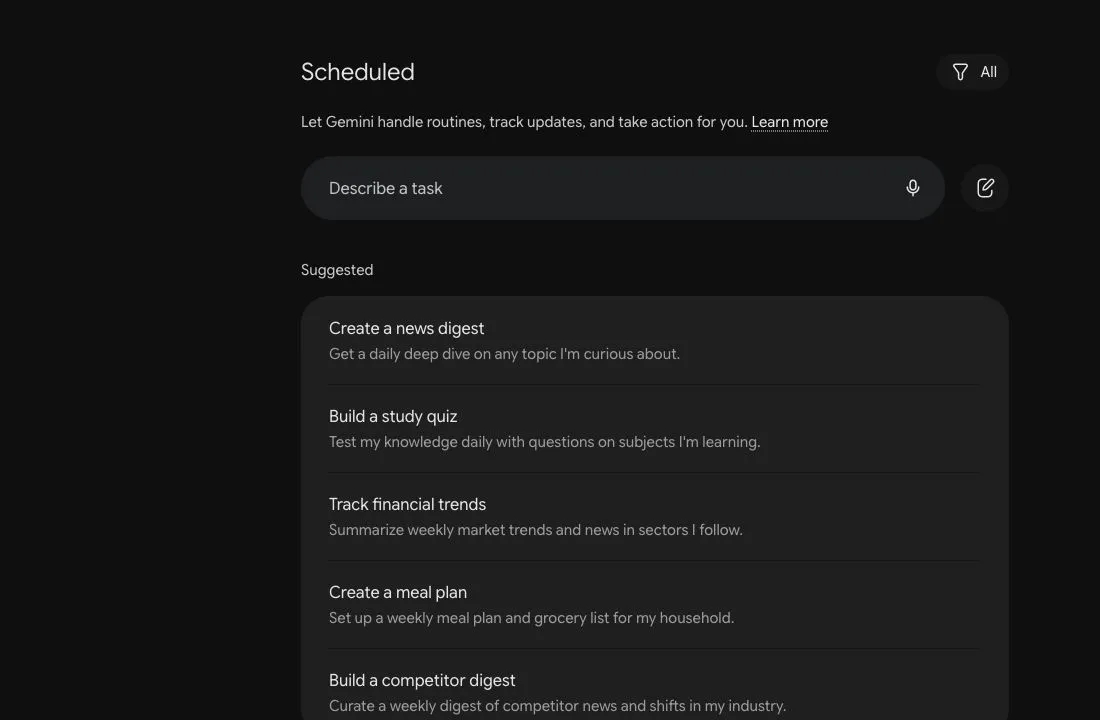
The prompt above is therefore a prepared example, not a confirmed delivery test. After you create a schedule, check the first result before relying on future runs.
4. Find, edit, or delete it
Open Scheduled from Gemini's sidebar. Select the schedule to change the instructions or timing. Use the menu beside a schedule to delete it when you no longer need it.
Google currently allows up to 10 active schedules. A schedule may be turned off after inactivity, and mobile notifications depend on your device settings.
Before connecting Gmail, Calendar, or Drive
Before granting a scheduled assistant access to email or calendar, use H5W’s seven AI-agent connection checks to review the account, permissions, approval controls, and disconnect path.
A schedule that uses another Google app needs that connected app. More access can make the result more useful, but it also increases the amount of personal or work information involved.
Before connecting anything, ask:
- Does this schedule need the app, or can I paste a small safe list instead?
- Is the account personal, work, or school-managed?
- Could the result expose private appointments, contacts, email subjects, or file names?
- Would a wrong or stale result cause a real problem?
- Can I review the output before anyone else receives it?
Keep Activity must be on for schedules. Review Gemini's activity and connected-app settings if that tradeoff does not suit you.
What schedules are good at
Schedules work best when the value comes from repetition rather than perfect real-time accuracy:
- a daily practice question;
- a weekly planning prompt;
- a monthly skill-learning suggestion;
- a digest of a non-sensitive topic;
- a recurring checklist you still review yourself.
They are a poor fit for emergency alerts, financial trading, health monitoring, legal deadlines, sending private messages, or changing important files without review.
If it does not run
Check the Scheduled page first. Confirm that the schedule is active, the time zone is correct, Keep Activity is on, and any required connected app still has permission.
For a schedule tied to a work or school account, ask the administrator whether the feature or app connection is allowed. If you cannot create schedules at all, the feature may not have reached the account yet.
To turn a larger goal into safe steps before automating anything, use How to Turn a Goal Into an Action Plan With AI. For study material you control, continue with How to Turn Class Materials Into Quizzes With Gemini Study Notebooks.
Sources and verification
Information last verified: October 20, 2026.
- Google: Schedules in Gemini Apps
- Google: Use and manage connected apps in Gemini
- Google: Gemini Apps Privacy Hub
Keep going
Choose your next step
Return to Organize & Plan for the full collection, or continue with a closely related guide.