How to Generate an Image From Text
You have a picture in your head, but you do not have the photo, drawing skills, or time to create it from scratch.
Tell an AI image tool six things: the subject, what it is doing, where it is, the visual style, the colors or lighting, and the shape of the final image. Generate one version, then fix one problem at a time.
You can start in the AI assistant you already use. ChatGPT is the simplest general starting point because you can describe revisions in normal language. Canva is useful when the image must fit directly into a flyer or social design. Adobe Firefly offers a dedicated image workflow, but its credit use depends on the feature and plan.
Copy this prompt formula
Create a [photo, illustration, collage, or other format] of [main subject] [doing what] in [setting].
Style: [realistic, paper cutout, watercolor, editorial illustration, and so on].
Colors and light: [palette, time of day, mood, or lighting].
Composition: [wide, square, portrait, close-up, overhead, or other framing].
Leave [location] clear for text. Do not include [unwanted objects, logos, or words].
The brackets are there to help you think. You do not need fancy prompt language.
For example:
Create a warm editorial illustration of a small neighborhood bakery preparing online orders early in the morning. Show two people packing bread beside paper bags and a tablet. Use cream, apricot, soft coral, and a little lavender. Wide horizontal composition with open space on the left for a headline. No logos, labels, or readable text.
That prompt is useful because it describes a job, not because it uses special AI words.
What happened in H5W's test
H5W ran that exact prompt through OpenAI image generation on October 10, 2026. The first result included two bakery workers, bread, paper bags, a tablet, warm cream and coral light, and a wide composition with clear space on the left. It did not add readable text, a logo, or a fake brand.
The background was busier than necessary, so H5W sent one focused revision: keep the people, poses, colors, wide layout, bread bags, tablet, and morning light; remove most of the shelves and small objects behind them. The revised image made the work area calmer without changing the main scene.
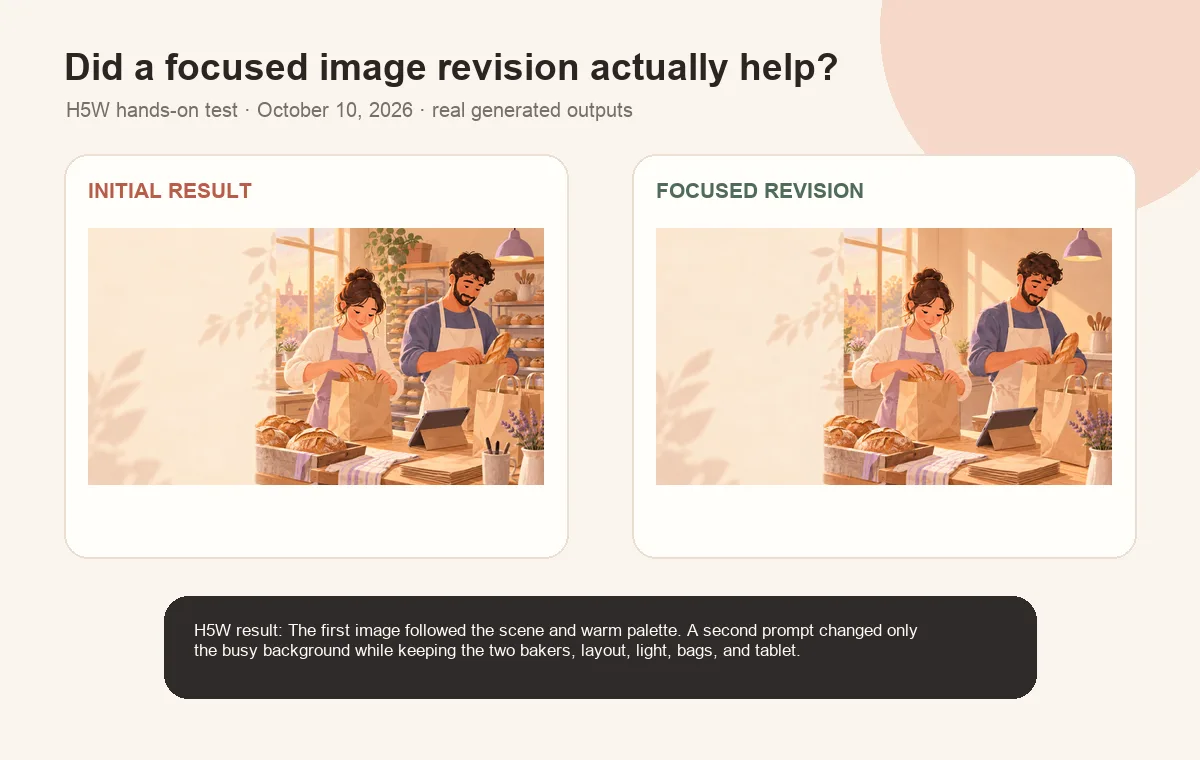
That is the useful lesson: you usually do not need a completely new prompt. Name the single problem, say what must stay unchanged, and compare the new result with the original. We would still inspect the hands, bags, tablet, and small background details at full size before using either image in a real ad or client design. Both images were generated through H5W's OpenAI image tool, not captured from a ChatGPT product screen.
Make the first version better
Look at the result and name the biggest problem. Then ask for one or two changes.
- If the subject is wrong: “Keep the scene, but show two bakers instead of one.”
- If the framing is wrong: “Make this a wider image and keep the people on the right.”
- If it feels too cold: “Use warmer morning light and softer cream and peach colors.”
- If it is too busy: “Remove the extra shelves and keep more empty background space.”
- If an object looks broken: “Regenerate the hands and the paper bag while keeping the rest unchanged.”
Avoid sending ten corrections at once. The tool may solve one problem and create three new ones.
Three useful shortcuts
Ask for space before adding text
AI image tools may produce misspelled or distorted words. If you need a poster, thumbnail, or social graphic, generate the picture with empty space and add the final text in Canva, PowerPoint, or another normal design tool.
Describe the viewpoint and what stays unchanged
Plain directions such as “viewed from above” or “wide scene with the subject on the right” work. For revisions, add a boundary: “Keep the people, colors, and wide composition. Change only the background.”
Check the image before you use it
Zoom in and look for:
- extra fingers, broken objects, or repeated details;
- unreadable signs and accidental words;
- logos or brand elements you did not request;
- faces that resemble a real person;
- misleading details, especially in maps, charts, products, uniforms, or safety equipment;
- the wrong shape or resolution for where the image will appear.
Do not use an AI-generated chart, historical image, medical image, or product photo as factual evidence without checking every visible detail.
Be careful with people, brands, and copyrighted work
Do not upload someone else's private photo or client artwork without permission.
Avoid asking for an exact copy of a living artist's style. Describe the visual qualities you want instead, such as “bold flat colors, rough paper texture, and simple geometric shapes.”
Usage rights depend on the tool, plan, feature, and prompt. Adobe says outputs from Firefly features without a beta label may be used commercially, but that does not give you ownership of someone else's logo, character, face, or source image. Check current terms before client or product use.
What the free option really means
As checked on October 10, 2026, ChatGPT allows image creation on the Free tier, but image generation has a separate usage limit and the app tells you when you reach it. Gemini requires sign-in for image generation. Adobe Firefly uses generative credits, and the amount used varies by feature and plan.
Limits can change, so this guide does not promise a fixed number of free images. Save your prompt before trying another official service.
The bottom line
Start with one clear scene, not a paragraph of decoration. Describe the subject, action, setting, style, colors, and format. Then make small revisions and inspect the result before using it.
For a simple conversational starting point, see the H5W ChatGPT guide. If the image must go straight into a designed layout, see Canva. For a dedicated image workflow, see Adobe Firefly.
Sources and verification
Information last verified: October 10, 2026.
- OpenAI: Images in ChatGPT
- OpenAI: ChatGPT Free Tier FAQ
- Google: Generate and edit images with Gemini Apps
- Adobe: Generative credits overview
- Adobe: Generative credits FAQ
Hands-on test completed October 10, 2026, including one initial generation and one focused revision using fictional, non-private material.
Free printable resource
AI Visual Project Brief
Use the practical version while you work. It is a selectable-text U.S. Letter PDF with no email gate.
Public H5W PDF with selectable text and permanent source links.
Keep going
Choose your next step
Return to Create Visuals for the full collection, or continue with a closely related guide.