
How to Clean Up a Spreadsheet With AI Without Breaking the Data
Your spreadsheet has active, Active, and ACTIVE in the same column. Some dates use slashes, one row has no email address, and two customer records look almost identical. AI can help clean it, but one wrong guess can silently change real data.
Duplicate the file, ask AI to show a change plan before editing, require a separate cleaned copy and change log, and manually verify row counts, identifiers, dates, formulas, and anything it marked uncertain.
Never let the first AI-cleaned file replace your only original.
Before you upload anything
Make a copy named something obvious, such as:
customer-list-working-copy-2026-10-11.xlsx
Then decide what the AI is allowed to change. A useful cleanup scope might include:
- trim accidental spaces;
- standardize capitalization;
- use one approved date format;
- identify blanks;
- find exact duplicates;
- flag possible duplicates without deleting them;
- create a separate issue list.
Do not upload customer names, employee records, payment details, health information, passwords, confidential pricing, or account identifiers to a personal AI account unless you are allowed to do so.
Copy this prompt
Analyze this spreadsheet before changing it.
First show a cleanup plan. Do not edit the original file.
In a separate cleaned copy:
– standardize
[COLUMN]to these approved values:[VALUES];– trim extra spaces;
– standardize unambiguous valid dates to
YYYY-MM-DD;– flag missing, impossible, or ambiguous dates instead of guessing;
– remove only exact duplicate records;
– flag possible duplicates for review;
– preserve every ID and formula unless I explicitly approve a change.
Finish with a change log showing the original and final row counts, duplicates removed, cells changed, cells flagged, formulas changed, and anything you could not safely fix.
Replace the bracketed parts with the real column names and approved values. “Make it consistent” is too vague for important data.
What happened in H5W's test
H5W uploaded an eight-row fictional CSV to a logged-in ChatGPT Temporary Chat on October 11, 2026. The file contained inconsistent status capitalization, one leading space in a city, mixed date formats, a missing date, an impossible month, a missing email, and two similar customer rows.
The publication recheck did several important things correctly:
- kept all seven unique customer IDs;
- reduced eight source rows to seven after one pair became identical under the approved status-capitalization rule;
- reported five changed cells, five flagged source rows, one removed duplicate, and zero unique IDs lost;
- left the missing date, impossible month, and missing email unresolved;
- flagged
09/02/2026as ambiguous instead of guessing whether it meant September 2 or February 9; - produced a separate cleaned CSV, change log, and review-flags file.
One detail still needed judgment. The duplicate was removed only after pending became Pending, so a human should confirm that normalization is enough to treat the two rows as the same record. The tool also left lowercase boston unchanged because city capitalization was outside the requested scope. That restraint is useful, even though it means the sheet is not “fully cleaned” in one pass.
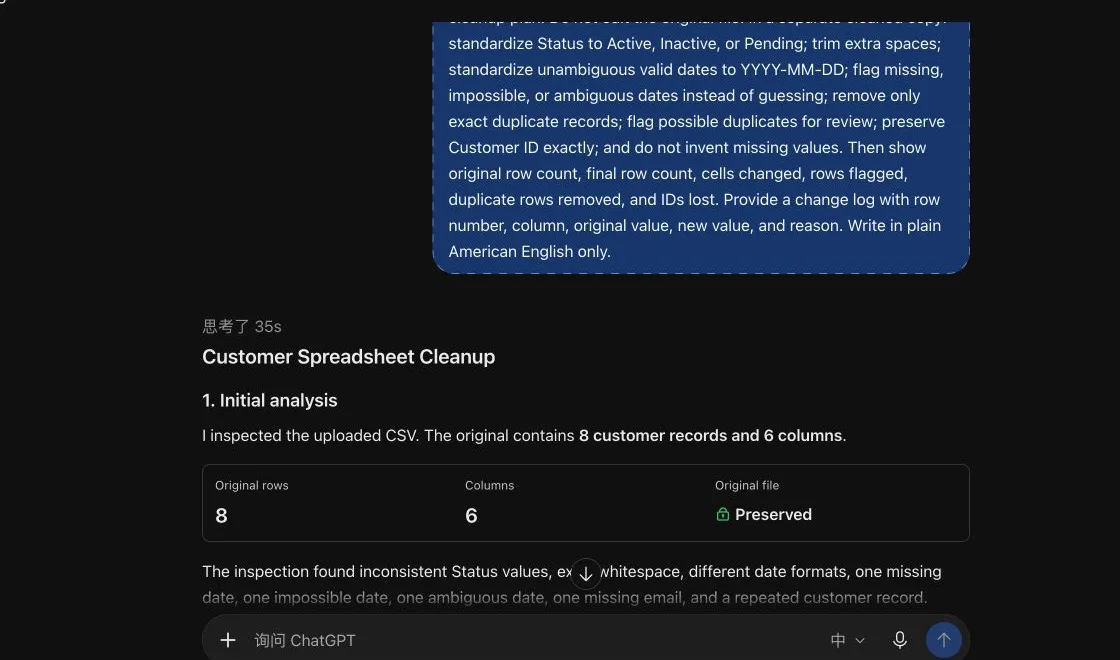
That is why the prompt above explicitly says ambiguous dates must be flagged. Before using the cleaned file, search the change log for every converted date and confirm the intended convention.
Check these six things before you use the file
1. Row count
If you started with 500 records and finished with 487, you need a clear explanation for all 13 removed rows.
2. Unique IDs
Customer IDs, order numbers, invoice numbers, and product codes should not be reformatted, rounded, merged, or regenerated.
3. Dates
Dates such as 03/04/2026 are ambiguous without a known convention. Do not let AI guess.
4. Formulas
Open the cleaned file in the spreadsheet app and inspect formula columns. A good-looking displayed value does not prove the formula is intact.
5. Duplicate rules
Two rows with the same name are not automatically duplicates. Decide which fields must match and which differences require review.
6. Blanks and impossible values
Missing information should remain missing until a reliable source fills it. “Fixing” a blank by inventing a value is data corruption.
A safer two-pass workflow
For an important spreadsheet, split the job:
*Pass 1: analyze only*
Show inconsistent values, blanks, possible duplicates, invalid dates, formula risks, and affected row numbers. Do not change the file.
Review that report yourself.
*Pass 2: make approved changes*
Apply only items 1, 2, and 4 from the approved plan. Put all other items in a review sheet. Create a new file and a cell-level change log.
This is slower than “clean everything,” but much easier to audit.
Which file types work?
OpenAI's current documentation lists XLSX, XLS, CSV, and TSV as supported spreadsheet formats. ChatGPT can create an interactive table, edit tables, and generate downloadable files. Limits and availability can vary by plan, model, workspace, and account settings.
OpenAI also offers ChatGPT inside Excel and Google Sheets. Its own guidance says to specify what may be changed, ask for a plan before large edits, duplicate important workbooks, and verify formulas, calculations, citations, and changed cells.
Those are good rules in any AI spreadsheet tool.
Privacy and retention
Temporary Chat stays out of history and is not used to improve OpenAI's models while it remains temporary, but OpenAI says a copy may be kept for up to 30 days. Uploaded files can also have storage and retention behavior separate from the conversation, depending on the feature and account.
For employer or client data, use an approved business system and follow your organization's retention rules. If you cannot safely remove private information, do not upload the spreadsheet.
Review What Information Should You Never Share With AI? before using a real file.
The bottom line
AI can save time on spreadsheet cleanup, especially when the rules are explicit. But it may treat an ambiguous date as obvious or mistake a similar record for a duplicate. Work on a copy, approve the cleanup plan, demand a change log, and check the data that would matter if it were wrong.
For a simple verification method, use How to Check Whether an AI Answer Is Correct.
Sources and verification
Information last verified: October 11, 2026.
- OpenAI: Data analysis with ChatGPT
- OpenAI: Extracting insights with ChatGPT Data Analysis
- OpenAI: Uploading files and audio to ChatGPT
- OpenAI: ChatGPT for Excel and Google Sheets
- OpenAI: Temporary Chat
Hands-on test completed October 11, 2026, using an eight-row fictional CSV. No real customer information was uploaded.
Free printable resource
Spreadsheet and Data QA Checklist
Use the practical version while you work. It is a selectable-text U.S. Letter PDF with no email gate.
Public H5W PDF with selectable text and permanent source links.
Keep going
Choose your next step
Return to Work for the full collection, or continue with a closely related guide.