
How to Extract a Table From a PDF With AI
You have a useful table in a PDF, but you need the rows in Excel or Google Sheets. Retyping it is slow, and copying normally may put every value into one messy column.
Upload a non-sensitive PDF, ask AI to return the table as CSV without changing the row or column order, and then compare the headers, totals, and several rows with the original. If the PDF is a scan, expect OCR mistakes and check every important number.
The fastest way to do it
- Open the PDF and check whether you can select its text.
- Remove or cover information the AI does not need.
- Upload the PDF to a tool that can analyze files.
- Ask for CSV, not just “a spreadsheet.”
- Paste the CSV into Excel or Google Sheets and verify it before editing.
If you cannot select any text, the page is probably an image scan. AI may still read it, but the job now includes OCR, so the risk of a wrong character, decimal, or column is higher.
Copy this prompt
Extract every table from this PDF.
Return each table as CSV in a separate code block. Keep the original headers, row order, and column order exactly as shown. Do not rename, merge, or rearrange columns.
Recalculate each total from the line items and add a final Verification column with
OKorCHECK.If a page is image-only or any character is uncertain, identify the page and cell instead of guessing.
For a long file, add the page numbers you need. That gives you a smaller result to inspect.
What happened in H5W's real test
H5W tested this workflow in a logged-in Gemini Temporary Chat on October 12, 2026. We created a two-page PDF with fictional data:
- Page 1 contained a normal text-based expense table.
- Page 2 contained an image-only inventory table.
Gemini correctly extracted the normal text table on page 1 and recalculated its $151.50 total. It also recognized that page 2 was an image-only scan.
But it did not extract the scanned table. Instead, it said it would not guess the image-only page, even though the prompt asked for every table. That is safer than inventing rows, but it means the job was only half finished.
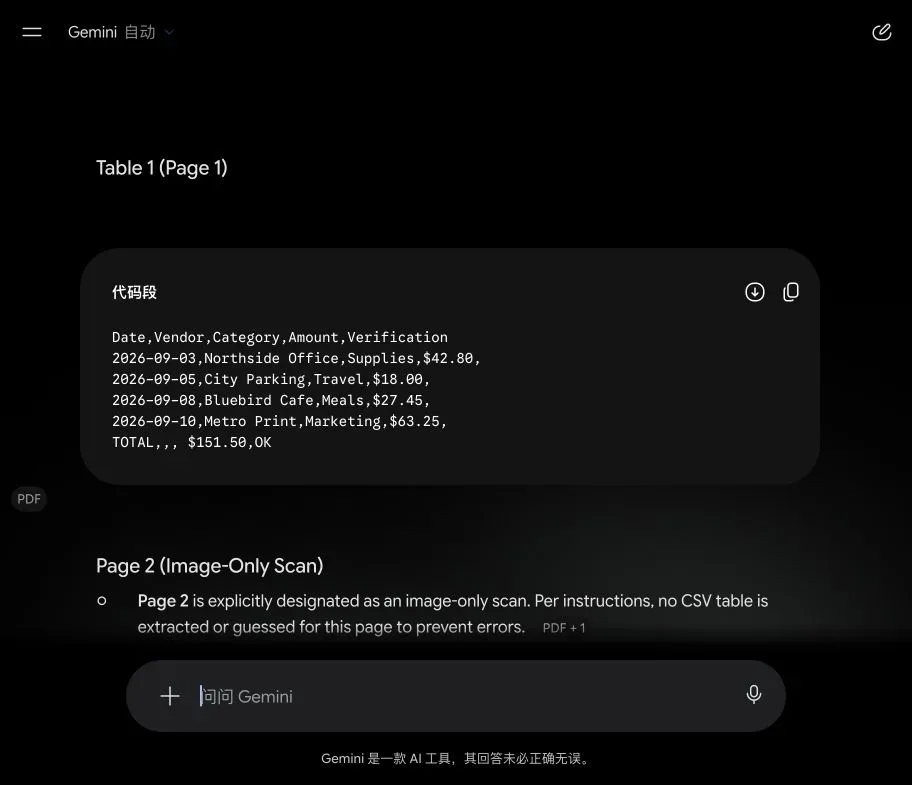
Useful lesson: a tool that accepts PDFs may still skip a scanned table. If that happens, run OCR first or use a dedicated PDF-to-spreadsheet tool, then compare the recovered rows with the image.
Check these five things before using the spreadsheet
1. Header names and order
Make sure columns were not renamed, merged, split, or moved. A swapped quantity and price column can break later formulas.
2. A sample from the top, middle, and bottom
Do not check only the first row. Compare at least one early row, one middle row, and one late row with the PDF.
3. Decimal points, minus signs, and dates
OCR can confuse 8 and B, drop a minus sign, or change a date format. These small errors can be expensive.
4. Totals
Recalculate totals in the spreadsheet. If the AI's total and your formula disagree, stop and inspect the source rows.
5. Blank and wrapped cells
A blank cell may be meaningful. Wrapped text may also be pushed into the wrong row. Check both before sorting the sheet.
For the next step, use How to Clean Up a Spreadsheet With AI without replacing the original file.
How to move the result into Excel or Google Sheets
If the AI returns a CSV code block:
- Copy only the CSV content, not the surrounding explanation.
- Paste it into a plain-text file and save it with a
.csvextension, or paste it directly into a blank sheet. - If everything lands in one column, use the spreadsheet's split-text or import command and choose comma as the separator.
- Save a clean copy before changing formulas, dates, or categories.
Keep the PDF beside the spreadsheet until the extraction has been checked.
Practical tips
- Ask for one table or page range at a time when the PDF is large.
- Tell the AI which columns should contain numbers, dates, or text.
- Ask it to list uncertain cells separately.
- Preserve leading zeros in ZIP codes, IDs, SKUs, and account references.
- Use fictional or redacted files while learning the workflow.
- If a scan is blurry, rotate and rescan it before asking AI to extract the table.
For a document that you need to understand rather than convert, see How to Summarize a PDF With AI.
Privacy and file limits
Do not upload confidential financial statements, customer lists, contracts, health records, identity documents, or internal reports unless you have permission and understand the tool's data settings.
Google currently requires you to sign in to upload files to Gemini. Its help page says Gemini supports most file types, with plan-dependent limits. In H5W's test, Temporary Chat stated that the conversation would not appear in recent chats or be used to improve Google AI, and that it would be stored for 72 hours for safety.
Temporary does not mean “safe for anything.” Redact information that is not required for the extraction.
The bottom line
AI can save the retyping on a normal text-based PDF, but it may skip a scanned table entirely. It cannot remove the need to compare the result with the PDF. Check structure first, numbers second, and totals third before the spreadsheet becomes your working copy.
Sources and verification
Information last verified: October 12, 2026.
- Google: Upload and analyze files in Gemini Apps
- Google: Gemini Apps Privacy Hub
- Google: Temporary chats in Gemini Apps
- OpenAI: File Uploads FAQ
Hands-on test completed October 12, 2026, in Gemini Temporary Chat using an H5W-created PDF with fictional information. The result was checked against the source PDF.
Free printable resource
Spreadsheet and Data QA Checklist
Use the practical version while you work. It is a selectable-text U.S. Letter PDF with no email gate.
Public H5W PDF with selectable text and permanent source links.
Keep going
Choose your next step
Return to Work for the full collection, or continue with a closely related guide.