
How to Spot an AI Phishing Email
The email looks professional. It uses your name, mentions payroll or a recent order, and has none of the spelling mistakes you were taught to watch for. Then it asks you to sign in, open a file, send money, or share a verification code before a deadline.
You usually cannot tell whether AI wrote the email—and you do not need to. Do not click or reply. Check the real sender address, what the message wants you to do, where its link goes, and whether you can confirm the request through an app, website, or phone number you already trust.
The 60-second check
- Stop before clicking. Do not open the link, download the attachment, call the number in the email, or reply with information.
- Expand the sender details. Read the full email address, not just the display name or logo.
- Name the requested action. Is it asking you to sign in, pay, change bank details, approve access, open a document, or share a password or one-time code?
- Check the request somewhere else. Open the company's official app, use a saved bookmark, type the known website yourself, or call a number from your card, statement, company directory, or official website.
- Report it instead of forwarding it around. Use your email provider's phishing control or your workplace reporting process, then delete the message when it is safe to do so.
A real request will survive an independent check. A scam depends on keeping you inside the message.
Stop looking for an “AI writing style”
Smooth grammar is not proof that an email is real. Awkward grammar is not proof that it is fake. A person, a template, a translation tool, or an AI system can all produce polished or clumsy writing.
The useful question is not “Did AI write this?” It is “What is this message trying to make me do?”
| Signal | What it tells you | What to do |
|---|---|---|
| The display name looks familiar | Very little; display names can be copied | Expand the full sender address |
| The email is perfectly written | Nothing reliable about safety or authorship | Check the request and route instead |
| The domain is unfamiliar or slightly misspelled | The sender may not be who they claim to be | Stop and verify through a known channel |
| The message creates urgency or secrecy | You may be getting pushed past your normal checks | Slow down and involve another person |
| It asks for a password, payment, login, attachment, or code | The requested action can cause real harm | Do not act from the email |
| The link text and real destination differ | The visible label may be hiding another site | Do not visit it; use the official app or site |
One warning sign does not prove fraud. Several together are enough reason to stop.
Inspect the email without following it
Start with the full sender address. A message labeled “Payroll,” “Your Bank,” or “Microsoft Support” may come from a free mailbox or a look-alike domain with one changed character. The FBI specifically warns that spoofed addresses and websites may differ from the trusted version by only a letter, number, or symbol.
Next, look at the destination without opening it. On a computer, your email app may show the URL when you hover over a link. On a phone, do not long-press if that risks opening or previewing the page; use the provider's reporting control and verify through the official app instead.
Do not assume a matching logo, brand color, signature, or personal detail makes the message genuine. Those details can be copied. Even a real conversation thread can be abused if an account was compromised.
For a work email, stop and contact IT or the security team when the message involves payroll, invoices, account access, confidential files, gift cards, wire transfers, or an unexpected login. Do not investigate a suspicious attachment yourself.
The safest verification route
Suppose an email says your bank account is locked. Do not use the email's button or phone number. Open the bank's official app or type the address you normally use. If there is no matching alert, call the number printed on your card or statement.
If the email appears to come from a coworker or family member, contact that person through a different channel you already use. A new reply to the same suspicious message is not an independent check.
Microsoft, Google, the FTC, and the FBI all recommend the same basic move: avoid the unexpected link or attachment and contact the person or organization using details you know are real.
Copy this prompt for a sanitized second opinion
Do the manual check first. A chatbot cannot safely open an attachment for you, prove who sent the email, or guarantee that a message is harmless. If you still need help organizing the warning signs, remove private information and paste only sanitized text.
Review this sanitized email for phishing risk.
Do not open or visit any link. Do not decide whether the writing was produced by AI; that is not a reliable safety test.

Sender name: [DISPLAY NAME]
Sender address: [FULL EMAIL ADDRESS]
Subject: [SUBJECT]
Message: [PASTE SANITIZED MESSAGE]
Displayed link text and visible destination, if known: [LINK TEXT AND VISIBLE URL]
My normal relationship with the sender: [RELATIONSHIP OR NONE]

Return:
1. What the email asks me to do.
2. Specific risk signals in the sender, request, timing, links, or requested information.
3. What is still unknown and cannot be proved from the text.
4. The safest way to verify the request through an independent channel.
5. What I should do if I already clicked or shared information.

Do not guess. Mark missing information as CHECK.
Replace these fields: [DISPLAY NAME], [FULL EMAIL ADDRESS], [SUBJECT], [PASTE SANITIZED MESSAGE], [LINK TEXT AND VISIBLE URL], and [RELATIONSHIP OR NONE].
Do not paste a real password, verification code, account number, private employee or customer information, confidential message, complete header, or attachment. Never upload a suspicious file to a consumer chatbot for inspection.
What H5W tested
H5W tested that prompt in a logged-in Gemini session using a fictional payroll message. The names were invented, and every website used the reserved .example ending, so no live site was visited.
The message asked the recipient to verify direct-deposit information before 3 p.m., sign in through a link, enter a phone code, or reply with the code. Gemini separated the requested action from the warning signs and identified the unusual sender, mismatched domains, sensitive payroll request, verification-code request, and artificial deadline. It recommended checking the normal payroll portal and contacting payroll or IT through an existing directory.
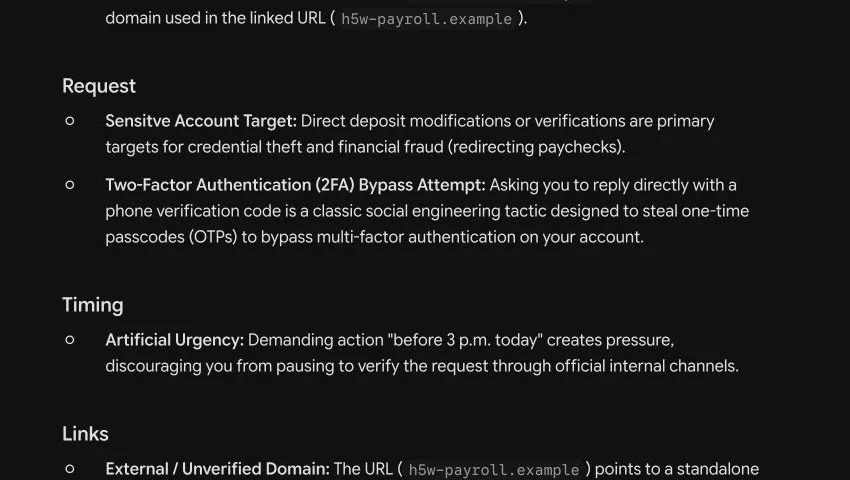
.example domains. The crop excludes the account area.The test also showed why AI should be a second opinion, not the decision-maker. Gemini marked ownership of the deliberately fictional domains as something to check instead of recognizing that .example was reserved for testing. It also gave a broad device-disconnection recommendation after a possible click. Those answers may be too cautious or miss context. Use your email provider, employer's security team, bank, or the claimed sender—not the chatbot—to make the final decision.
If you already clicked or replied
Do not spend ten minutes trying to decide whether the email used AI. Respond to what may have been exposed.
You opened the link but entered nothing
Close the page. Do not download anything or accept browser prompts. Update your security software and run a scan if the page downloaded a file or your device behaves unexpectedly. On a work device, tell IT or security what happened.
You entered a password
Open the real service from its official app, a saved bookmark, or an address you type yourself. Change the password immediately, sign out other sessions if the service offers that control, and turn on multi-factor authentication. Change reused passwords on other accounts too.
You shared a one-time code or approved a sign-in
Contact the account provider or workplace IT immediately. Review recent sign-ins, remove unfamiliar devices or authentication methods, and reset the affected password through the official service.
You sent money or bank details
Call the bank, card issuer, payment app, or wire service using its official number. Ask for the fraud department and whether the transaction can be stopped or reversed. Keep the message and transaction details for the report, but do not keep interacting with the sender.
You opened an attachment
Stop opening or forwarding it. Run the device's current security scan and contact workplace IT if it was a company device or account. The FTC recommends updating security software and scanning the device when a suspicious link or attachment may have installed something.
Report the message
In Gmail, open the message menu and choose Report phishing. In Microsoft 365 Outlook or Outlook.com, select the message and use Report > Report phishing. Interface wording can change, especially on managed work accounts.
You can also report the attempt at ReportFraud.ftc.gov and spoofing or phishing through the FBI's Internet Crime Complaint Center. Follow your employer's internal process for work email.
After reporting, delete the message unless your security team asks you to preserve it. Do not forward it to friends as a warning if that could spread a dangerous attachment or live link.
Use the same rule outside email
The useful habit is simple: verify outside the message.
It works when a polished email asks for your password, when a familiar voice asks for emergency money, and when a chatbot gives an answer that sounds certain. Continue with H5W's guide to AI voice scams and voice cloning fraud and review what information you should never share with AI.
If the message offers remote AI training or data annotation work, use H5W’s AI training job scam checklist before sharing ID, bank details, or money.
If a buyer sends an email or screenshot claiming payment is complete, follow H5W’s account-first payment check before shipping, handing over an item, or refunding an alleged overpayment.
Sources and verification
Information last verified: October 18, 2026.
- FTC: How To Recognize and Avoid Phishing Scams
- FBI: Spoofing and Phishing
- CISA: Avoid Phishing Scams
- Google Gmail Help: Avoid & report phishing emails
- Microsoft Support: Protect yourself from phishing
Free printable resource
AI Scam Pause-and-Verify Checklist
Use the practical version while you work. It is a selectable-text U.S. Letter PDF with no email gate.
Public H5W PDF with selectable text and permanent source links.
Keep going
Choose your next step
Return to Safety & Privacy for the full collection, or continue with a closely related guide.