
How to Summarize a PDF With AI
You have a meeting in ten minutes and someone has just sent you a 38-page PDF.
You do not need a book report. You need to know what the document is asking for, which numbers matter, whether there is a deadline, and what you are expected to do next.
The quickest useful method is:
- decide what you need from the PDF;
- remove anything private;
- upload it to the AI tool you already use;
- ask for a short, specific brief;
- check the dates, numbers, and page references in the original.
If your AI tool accepts the file, this usually takes a few minutes. If its upload button is missing or locked, there is a copy-and-paste fallback below.
First, decide what you actually need
“Summarize this PDF” is too vague. The AI has to guess whether you want a short overview, a study guide, a list of risks, or every detail it can find.
Before you upload anything, finish this sentence:
I need to understand this PDF so I can ________.
For example:
- prepare for a meeting;
- reply to a client;
- decide whether a proposal needs approval;
- find deadlines and action items;
- understand a school reading in plain English.
That one decision will make the result much more useful.
Check the file before uploading it
Take thirty seconds to look for information that should not leave your computer or workplace.
Remove or cover names, addresses, account numbers, signatures, medical information, private client details, employee records, and anything your employer or school treats as confidential. If you cannot safely remove those details, do not upload the file to a consumer AI tool.
Also try selecting a sentence in the PDF. If you cannot select any text and every page behaves like a picture, it is probably a scanned PDF.
Practical tip: A regular text-based PDF can usually be uploaded as it is. For a scanned or image-only PDF, run OCR (optical character recognition) first so the pages contain selectable text. Some AI tools may try to read the page images, but OCR usually gives you a result that is easier to search and verify.
Upload the PDF to the tool you already use
Start with the AI assistant you already know. Look for a paperclip, plus button, or Add file option, and wait until the filename appears before sending your message.
You do not need to open four accounts for one PDF. ChatGPT, Claude, Gemini, and Gemini Notebook can all work with PDFs when file upload is available in your account. The exact free allowance can change, so the controls and warning messages in your account are more reliable than an old quota quoted in a blog post.
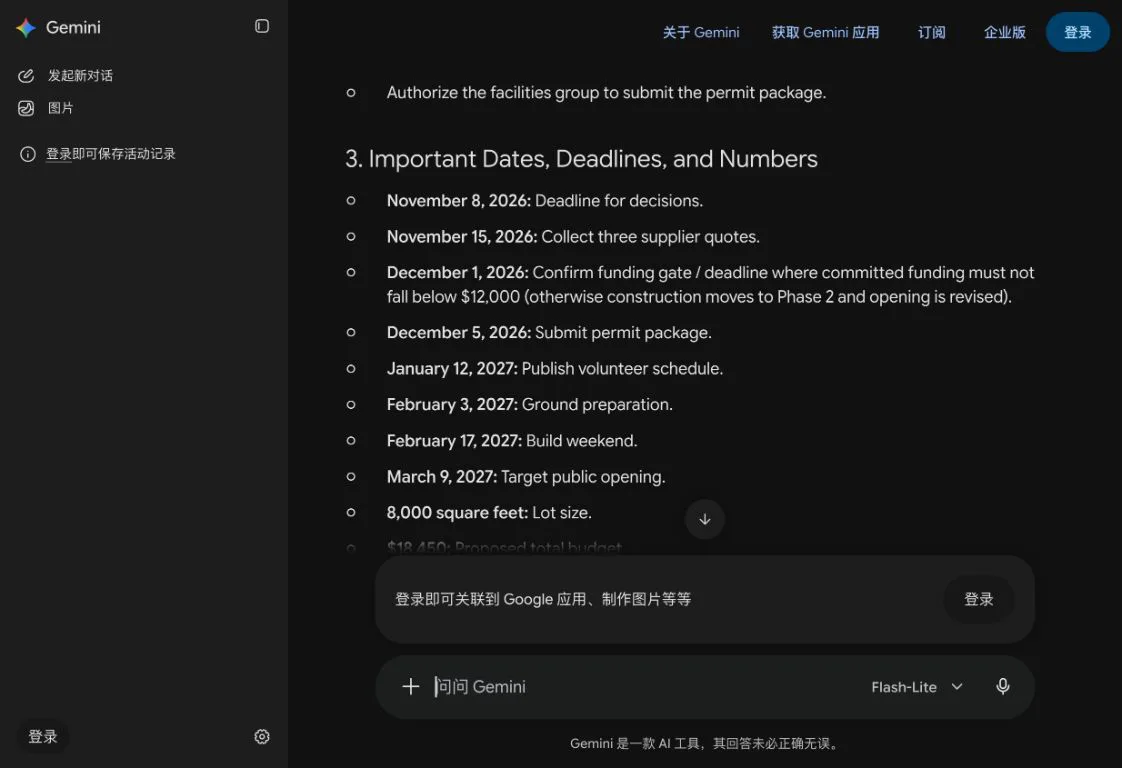
If the upload control is disabled, sign in. In H5W’s October 2026 check, ChatGPT and Gemini showed their file controls but kept them locked until sign-in, while Gemini Notebook sent us directly to a Google sign-in page.
Use this prompt
Replace the first line with your real situation:
I have a meeting in 10 minutes. Read this PDF and give me only:
1. what the document is asking for, in two sentences;
2. the decisions I need to make;
3. the important dates, deadlines, and numbers;
4. any action items and who owns them;
5. three facts I should verify, with PDF page numbers.Use plain English. Use only the PDF. If a detail is missing or a page is unreadable, say so instead of guessing.
This works better than asking for a “complete summary” because it tells the tool what to leave out as well as what to include.
For a school paper, change the list to the research question, method, findings, and limitations. For a contract, ask for the parties, dates, obligations, fees, renewal terms, and clauses that need professional review. Do not treat the AI’s answer as legal advice.
What a useful answer looks like
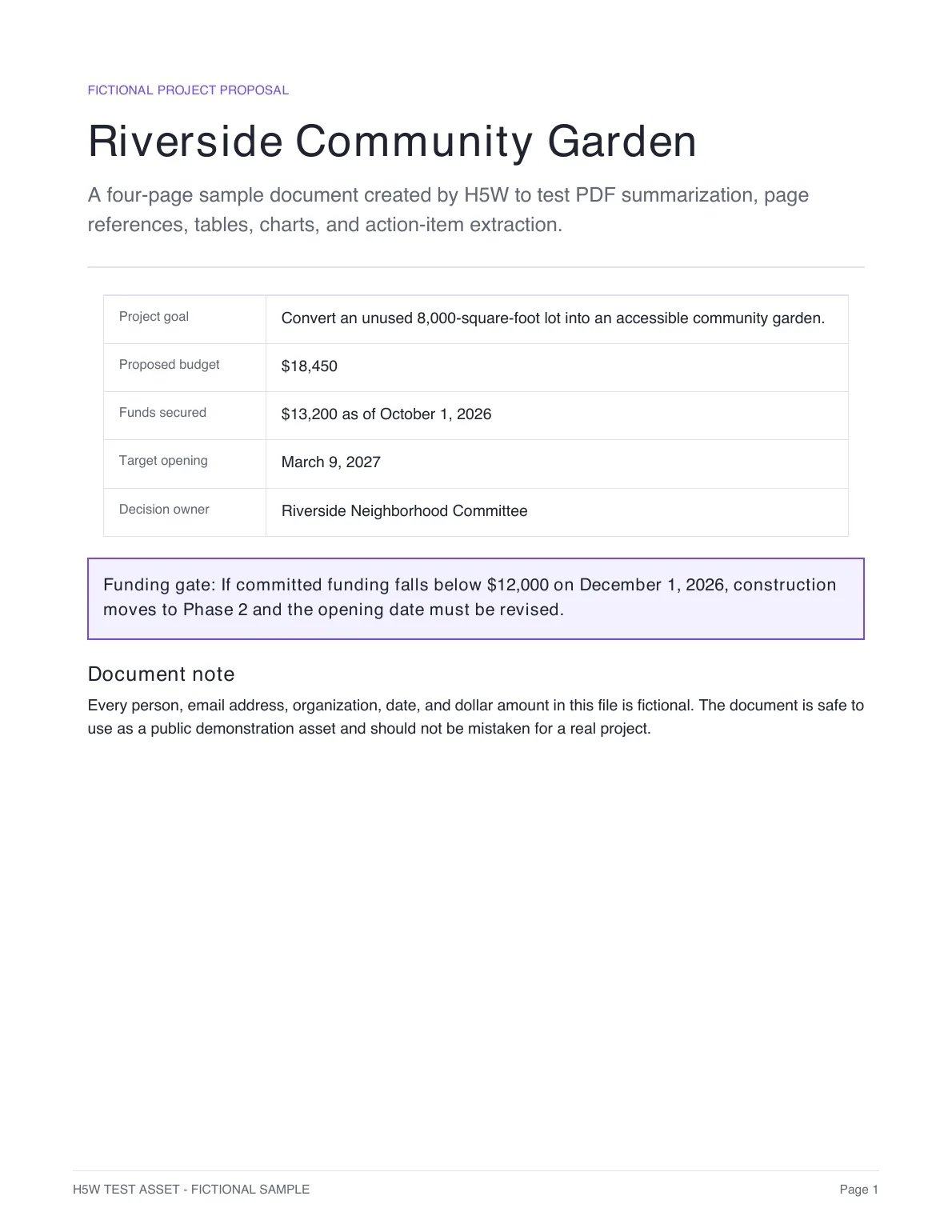
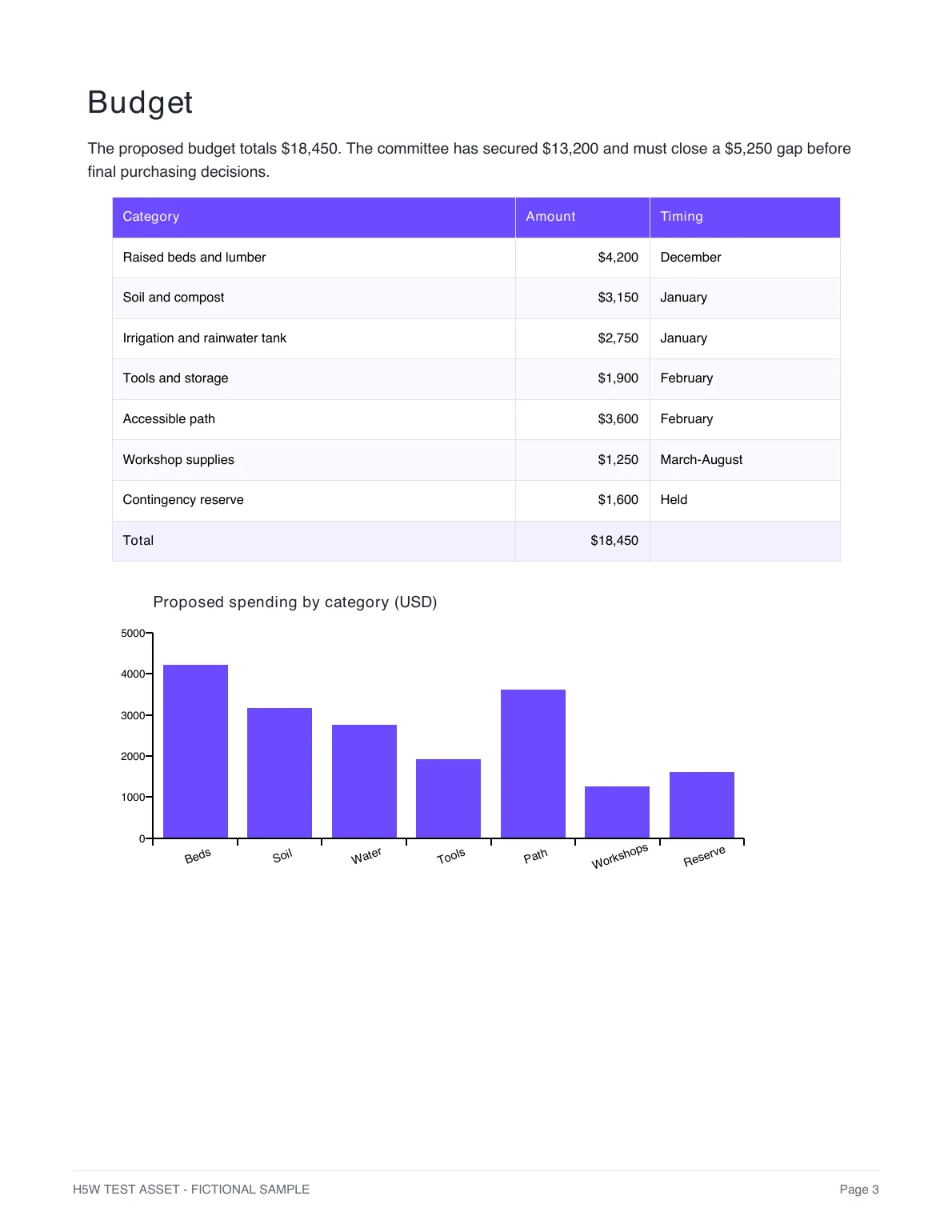
H5W tested the meeting prompt with a fictional community-garden proposal. The document included a budget, a funding condition, deadlines, four pending decisions, and a page of risks.
The answer correctly pulled out:
- the $5,250 funding gap;
- the rule that funding below $12,000 on December 1, 2026 would move construction to a later phase;
- the target opening date of March 9, 2027;
- all four decisions due by November 8, 2026;
- three checkable facts with the correct source-page numbers.
That is the kind of result you want: short enough to use, but specific enough to verify.
Check the three things that could hurt you if they are wrong
Safety tip: For an important report, contract, research paper, medical document, or financial document, always compare the key numbers and conclusions with the original. Use the AI summary to find the relevant pages—not as proof that the information is correct.
Do not reread the entire PDF. Check the details that would change your decision or make you look unprepared:
- Numbers. Budget totals, percentages, fees, quantities, and measurements.
- Dates. Deadlines, renewal dates, meeting dates, and the period a result covers.
- Conditions. Words such as “if,” “unless,” “only after,” and “subject to.”
In our test document, the $18,450 total budget was correct, but that number alone was not enough. The proposal also said that the opening date had to change if committed funding fell below $12,000 on December 1. Missing that condition would change the meaning of the summary.
Open the cited page and compare the original wording. If the AI gives no page number, ask:
Which PDF page supports each number and deadline in your answer? Quote only the short phrase I need to find it.
Remember that the PDF viewer’s page count may not match the page number printed inside the document.
If the PDF will not upload
- Sign in and check whether the file option becomes available.
- Make sure the PDF is not password-protected.
- If it is a scanned or image-only PDF, run OCR and save a searchable copy.
- Save only the pages you actually need as a smaller PDF.
- If it is a short, text-based document, copy the relevant text and paste it into the chat.
H5W tested that last option in Gemini without signing in. The file-upload option was disabled, but pasted text worked and produced the correct figures and page references from the sample document. This fallback is useful for a few pages, not a 200-page report, and it will not preserve charts or layout.
If the answer is too general
Do not ask it to “try again.” Tell it what is missing.
Use a follow-up such as:
- “Give me only the decisions, owners, and deadlines.”
- “Which three parts could delay this project?”
- “Explain the conclusion without technical language.”
- “List every number in the summary and the page where you found it.”
- “Which pages were difficult or impossible to read?”
Stay in the same conversation so the file remains available.
The short version
Start with your real reason for opening the PDF. Ask for the decisions, dates, numbers, and next actions you need—not a generic summary. Then check the few details that would matter if the AI got them wrong.
AI is useful here as a fast first reader. The original PDF is still the source.
What to do next
- Return to H5W and choose another task you want to finish.
- Read the H5W Privacy Policy to understand how this site handles information.
If the same file is already saved in your account, H5W’s ChatGPT Library guide shows how to find it again without hunting through old chats.
Sources and verification
Information last verified: October 1, 2026.
- Use ChatGPT — official OpenAI documentation
- Upload files to Claude — Claude Help Center
- Upload and analyze files in Gemini Apps — Google Help
- Add sources in Gemini Notebook — Google Help
Free printable resource
AI PDF Summary Worksheet
Use the practical version while you work. It is a selectable-text U.S. Letter PDF with no email gate.
Public H5W PDF with selectable text and permanent source links.
Keep going
Choose your next step
Return to Summarize for the full collection, or continue with a closely related guide.