How to Scan Paper Notes Into One PDF With ChatGPT
You have several pages of handwritten notes, printed instructions, receipts, or class material. Taking separate photos works, but it quickly becomes messy.
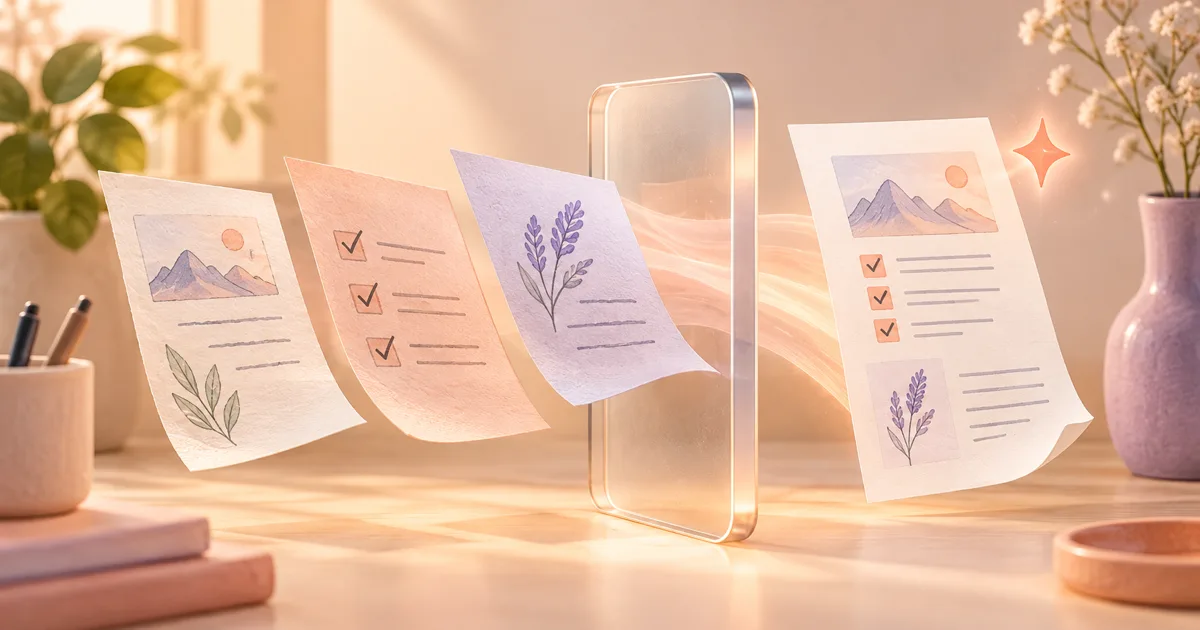
On iPhone, start with ChatGPT's Scan option: in the ChatGPT app on iPhone, open the camera, select the three-dot menu, and choose Scan. Capture the pages in order. ChatGPT combines them into one PDF that you can upload to the conversation and ask it to summarize or organize.
The feature is rolling out on iOS, so it may not appear on every phone immediately.
Scan the pages
- Put the pages on a flat surface with good light.
- Open ChatGPT and select the camera.
- Open the three-dot menu and choose Scan.
- Capture each page in the correct order.
- Review the page edges and rescan anything blurry or cut off.
- Add the completed PDF to your message.
Then use a direct prompt such as:
Summarize this scanned PDF in five bullets. List any dates, amounts, and action items separately. If a word is unclear, mark it as unclear instead of guessing.
Check the PDF before asking for a summary
Treat the scan and the summary as two separate jobs. First confirm that the PDF is a usable copy of the paper pages.
- Compare the number of scanned pages with the number of paper pages.
- Open the first, middle, and last page at full size.
- Check page order, cropped edges, glare, shadows, and faint handwriting.
- Search or copy one distinctive sentence if the PDF has selectable text.
- Rescan any page that would force a person to guess.
Only then ask ChatGPT to summarize or organize it. This catches missing pages before the AI produces a confident-looking answer from an incomplete file.
For long notes, ask for a page-by-page outline first. If the outline skips a topic you know is present, inspect those pages before requesting the final summary.
Practical tips
- Use bright, even light and avoid a shadow from your phone.
- Keep the camera parallel to the page so lines do not lean or stretch.
- Scan one page at a time rather than trying to fit two pages into one photo.
- Check handwriting, faint print, totals, dates, and names before trusting the result.
- If the order matters, number the paper pages before scanning.
Normal PDFs and scanned PDFs are different
A normal text PDF already contains selectable text. A scanned PDF is made from page images and may need OCR—optical character recognition—before all of its words can be searched or copied.
ChatGPT may still read clear page images, but faint handwriting, unusual layouts, glare, and poor focus can cause errors. If the scan is important, compare the summary with the paper pages rather than assuming every word was recognized correctly.
For reports, contracts, research papers, bills, or school results, always verify key numbers and conclusions against the original.
When to use a dedicated scanning app instead
ChatGPT's scan option is convenient when you want to discuss a few pages immediately. A dedicated document-scanning app is usually better when you need archival quality, consistent page sizes, searchable OCR, password protection, or a file that must be stored without entering an AI conversation.
For receipts, signed forms, identity documents, medical records, and confidential work papers, ask whether the file needs to enter ChatGPT at all. You can scan and save a document without uploading it to an AI service. If the task only needs a short passage, type or copy a cleaned excerpt rather than sending the complete page.
Before relying on the result, compare every name, date, total, deadline, and instruction with the paper original. A neat PDF is not proof that every word was captured correctly.
Privacy check before you scan
The convenience of scanning directly into an AI conversation can make it easy to include more than you intended. Before capturing a page, look for names, addresses, signatures, account numbers, student IDs, medical details, confidential work information, or notes about another person.
If ChatGPT only needs one section, scan only that section. For sensitive documents, make a clean copy first and follow H5W's guide to removing personal information before uploading a file.
Once you have a safe, readable file, use the full PDF summarizing guide for better prompts and verification steps.
What changed?
OpenAI announced the multi-page scanning option on October 1, 2026. It removes the extra step of using another scanning app just to combine several pages into one PDF.
Sources and verification
Information last verified: October 12, 2026.
Free printable resource
AI PDF Summary Worksheet
Use the practical version while you work. It is a selectable-text U.S. Letter PDF with no email gate.
Public H5W PDF with selectable text and permanent source links.
Keep going
Choose your next step
Return to Summarize for the full collection, or continue with a closely related guide.