
How to Turn Class Materials Into Quizzes With Gemini Study Notebooks
You have lecture notes, handouts, and a textbook chapter—but rereading everything is not telling you what you actually need to practise.
The simplest way to try it: create a Study Notebook in Gemini, add the relevant materials, state your learning goal, and take the diagnostic quiz. Gemini can then build short lessons and update its recommendations as you complete activities.
Create a Study Notebook
- Go to Gemini on the web and open Notebooks.
- Choose New notebook, then Study and learn.
- Describe the goal, such as
Help me prepare for my biology midterm. - Add only the notes, PDFs, or other sources needed for that goal.
- Take the diagnostic quiz and review the suggested lessons.
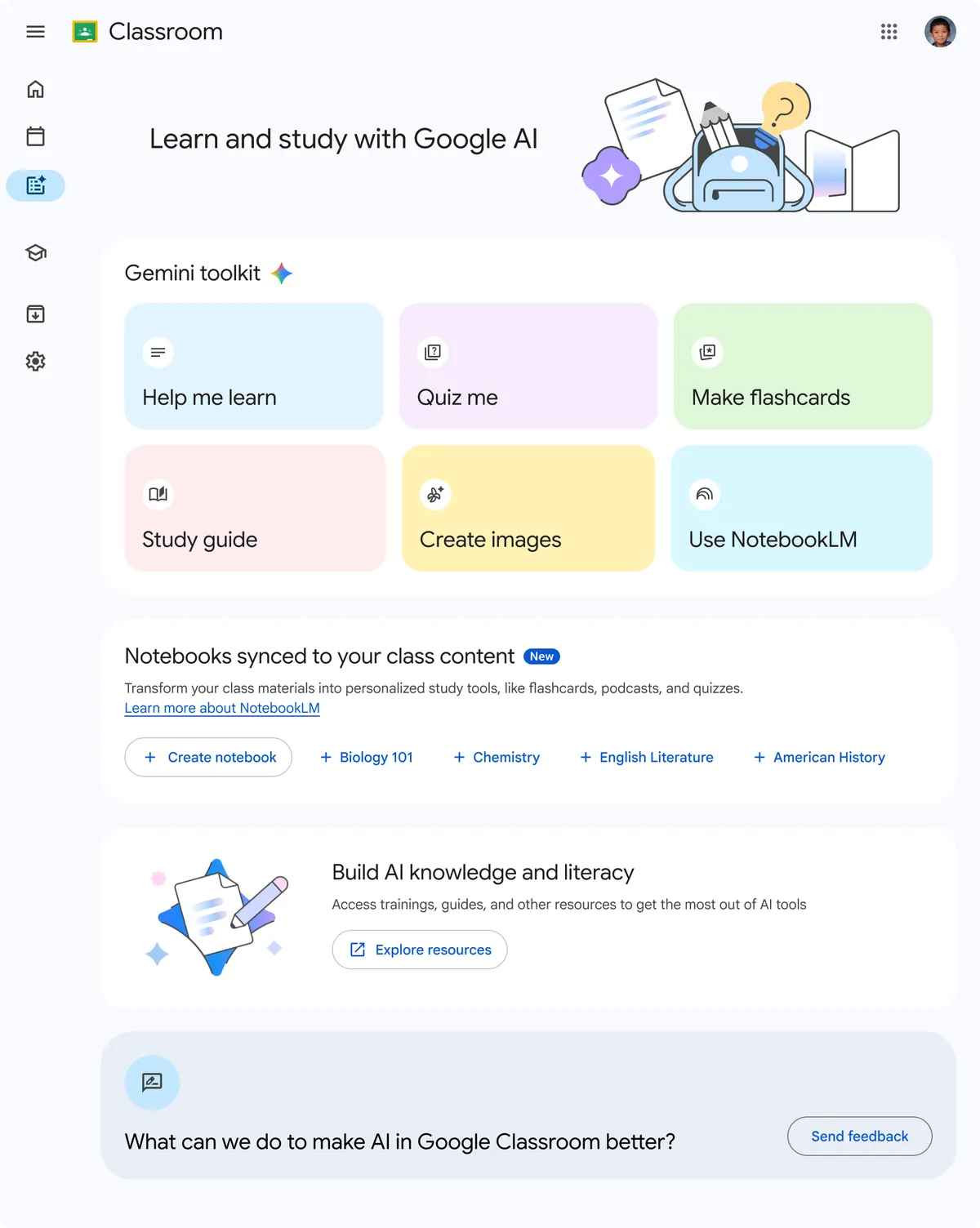
Study Notebooks can create interactive lessons, track progress, and generate flashcards or infographics from your course materials.
Use a focused goal
Do not upload an entire semester and ask Gemini to “teach me everything.” A smaller target usually produces better practice.
Try:
Help me understand photosynthesis for Friday's test. Start with a short diagnostic quiz, then teach only the areas I miss. Use the uploaded class notes as the main source.
For ordinary quizzes in Gemini Notebook, you can also choose the difficulty, ask for fewer or more questions, request explanations, and repeat only the cards you missed.
Separate learning from testing
Use the notebook for two different jobs. First, ask it to explain the material and identify gaps. Then close the explanation and take a quiz without looking at the answer. Mixing the explanation and the test on one screen can create the feeling of fluency without showing what you can recall independently.
After the diagnostic quiz, write down the two or three weakest topics in your own words. Ask for one short lesson and a few questions for each topic. Retake only the missed concepts the next day rather than repeating the entire set immediately.
A useful prompt is:
Use only the uploaded course material. Create five questions about [TOPIC]. After I answer, explain each mistake and cite the source page or section. Mark anything the sources do not clearly answer.
This makes the source boundary visible and gives you a way to check questionable explanations.
Important limits
Google's current help page says Study Notebooks:
- require Keep Activity to be turned on;
- are available at
gemini.google.combut not yet in the Gemini mobile app; - are still rolling out, so some accounts may not see them;
- use uploaded sources but can still produce incorrect or confusing material.
Google's June announcement originally described an 18-and-over personal-account rollout with school accounts following later. Current eligibility can differ by account, region, age, and school settings, so use the controls visible in your own account as the final check.
Study tips that make it more useful
- Ask for explanations after each wrong answer, not just the correct choice.
- Compare definitions and formulas with your teacher's materials.
- Keep each notebook focused on one course or exam.
- Remove old or conflicting sources when the course material changes.
- Ask Gemini to cite the source page or section for important answers.
- Use the quiz to find weak areas, then practise those areas yourself.
Check the quality of the quiz
Review a sample before trusting the full set. Confirm that each question has one defensible answer, that the explanation matches the assigned source, and that the difficulty fits the exam. Watch for questions that depend on an unstated assumption or reward a wording trick instead of understanding.
If two answers could be correct, ask Gemini to rewrite the question and explain what made it ambiguous. If an answer conflicts with your notes, use the teacher's material or assigned source as the authority. Save the disputed item separately so you do not keep practising a possible error.
Study Notebooks are most useful when the uploaded sources and learning goal are stable. For a one-time set of five questions, an ordinary Gemini quiz may be faster. Create a Study Notebook when you want the sources, lessons, progress, and repeated practice to stay together over time.
Privacy and academic honesty
Do not upload another student's work, private feedback, answer keys you are not allowed to share, or school records containing personal information. Keep Activity is required for Study Notebooks, so review your Gemini activity and privacy settings before adding files.
AI-generated quizzes can be wrong. They should help you practise, not replace the syllabus, your teacher's instructions, or the original textbook.
If your source is a long document, first use H5W's PDF summarizing guide to identify the relevant pages. Check what information you should never share with AI before uploading school or personal records.
Sources and verification
Information last verified: October 12, 2026.
- Google: Organize projects with notebooks in Gemini Apps
- Google: Generate flashcards or quizzes in Gemini Notebook
- Google: Supporting students with connected AI tools
- Google: Gemini Apps Privacy Hub
Free printable resource
AI Study Guide Builder
Use the practical version while you work. It is a selectable-text U.S. Letter PDF with no email gate.
Public H5W PDF with selectable text and permanent source links.
Keep going
Choose your next step
Return to Research & Learn for the full collection, or continue with a closely related guide.