
How to Remove Personal Information Before Uploading a File
You want AI to summarize a report, improve a resume, or explain a document—but the file also contains names, phone numbers, account details, comments, or a signature.
The safety step I would not skip: make a separate copy, remove everything the AI does not need, replace identifying details with placeholders, and use a real redaction tool for PDFs. Before uploading, reopen the clean copy and check that the removed information cannot be searched, selected, or copied.
If the file belongs to your employer, school, client, patient, or another person, cleaning it may not be enough. Follow their policy and use an approved system when required.
Choose the simplest method that fits the file:
- Word or Google document: copy only the needed text into a new blank document and replace identifying details with placeholders.
- Normal PDF on a Mac: use Preview's Redaction Selection tool, save the copy, close it, and test it.
- PDF with Acrobat Pro: use Redact a PDF, apply the redactions, sanitize hidden information, and save a new copy.
- Scanned or image-only PDF: run OCR if needed, redact the page image and recognized text, then inspect every page visually.
The safest simple method
1. Make a copy first
Keep the original untouched. Give the copy an obvious name such as:
report-clean-copy.pdf
This matters because proper redaction can be permanent. It also makes it harder to upload the original by mistake.
2. Remove more than you hide
Start by deleting entire pages, paragraphs, tables, or images the AI does not need. Sending two relevant pages is safer than cleaning and uploading a 40-page file.
For an editable Word or Google document, the easiest option is often to copy only the useful text into a new blank document. Replace identifying details with labels such as:
[CLIENT NAME][COMPANY][ACCOUNT NUMBER][AMOUNT][DATE][PRIVATE DETAIL REMOVED]
The AI can usually complete the task without knowing the real identity behind it.
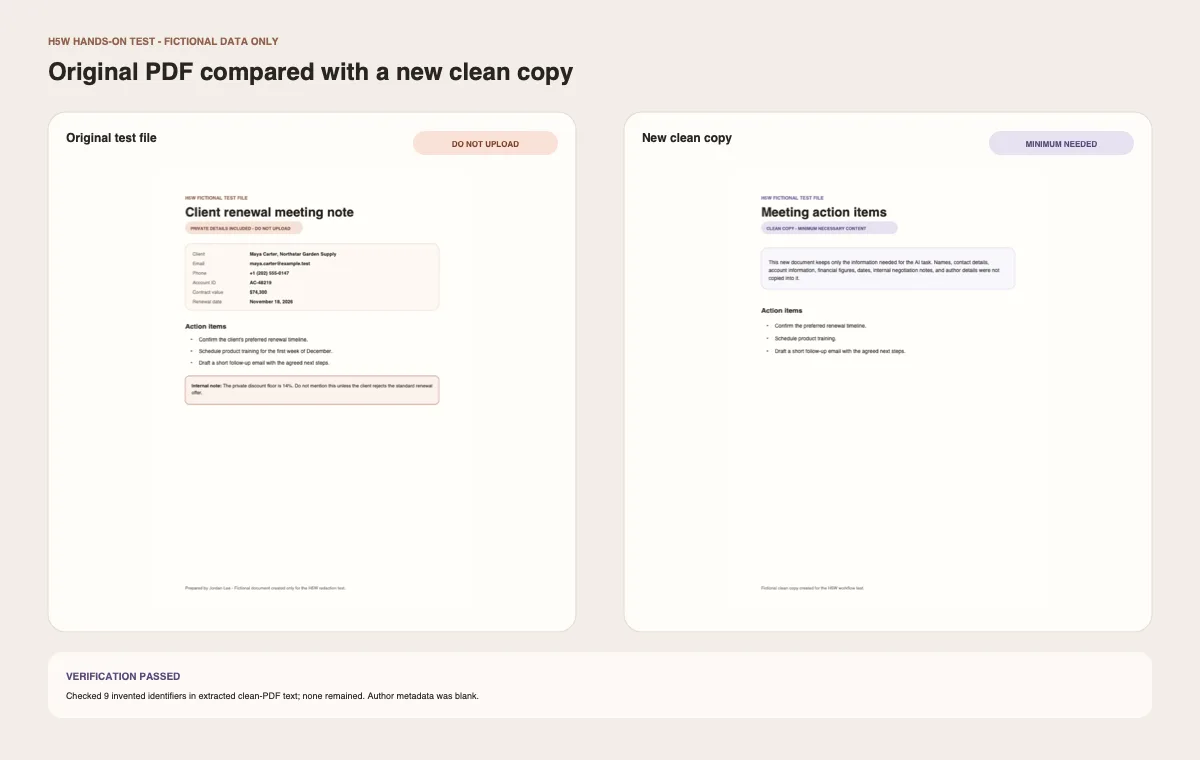
For this guide, H5W created a fictional client note and then made a new PDF containing only the three action items. We checked the clean PDF for nine invented identifiers—including the name, email, phone number, account ID, amount, date, discount note, company, and author name. None remained in its extracted text, and the author metadata was blank.
3. Use real redaction for a PDF
Do not draw a black rectangle over the words. A shape can hide text visually while leaving it underneath, where it may still be searchable or copyable.
Use a tool with a specific Redact function:
- On a Mac: open the copy in Preview, show the Markup Toolbar, choose Redaction Selection, and select the text. Save and close the copy to make the redaction permanent. Also check the table of contents—Apple notes that linked entries are not removed automatically.
- If you have Acrobat Pro: choose All tools > Redact a PDF, mark the text or images, select Apply, turn on sanitization when offered, and save the sanitized file with a new name.
- Without a proper PDF redaction tool: do not experiment with an unknown online service using a private file. Copy only the necessary, non-sensitive text into a new document instead.
Redaction is different from highlighting, drawing, cropping, or changing the text color. Those actions may change what you see without safely removing the underlying information.
4. Check hidden information
A document can reveal more than the words on the page. Check for:
- comments and tracked changes;
- author names and document properties;
- headers, footers, and watermarks;
- speaker notes;
- hidden rows, columns, or sheets;
- embedded files and objects;
- signatures, barcodes, and QR codes.
In desktop versions of Word, Excel, and PowerPoint, Microsoft provides Document Inspector under File > Info > Check for Issues > Inspect Document. Microsoft recommends running it on a copy because removed information may not be recoverable.
For other file types, open the file's properties or information panel and review anything that could identify a person, company, device, or location.
Scanned PDFs need an extra check
A scanned PDF is made from page images. It may also contain an OCR text layer that lets you search or copy the words.
If you need to find names or numbers in a scan, run OCR first—but do not trust it to find everything. OCR can misread blurry text, handwriting, unusual fonts, or poor scans.
After redacting a scanned file:
- inspect every page visually;
- search for the removed names and numbers;
- try selecting and copying text from the redacted area;
- check thumbnails for pages you meant to remove.
If you cannot confirm that the image and any text layer are clean, do not upload the file.
The final 60-second check
Close the clean copy, then open it again and ask:
- Can I still see the information? Check every page, image, header, and footer.
- Can I search for it? Search for each removed name, email address, phone number, account number, and other unique detail.
- Can I copy it? Drag across the redacted area, copy, and paste into a blank note.
- Is anything hidden? Check comments, tracked changes, notes, properties, and attachments.
- Am I uploading the clean copy? Check the filename one last time.
If any removed detail reappears, stop and make a new clean copy.
When not to upload the file
Do not upload a file to a personal AI account when it contains information you are not allowed to share, even after basic cleaning. That may include medical or HR records, client files, identity documents, bank statements, signed contracts, confidential work, or another person's private information.
Turning off model training does not give you permission to share the file. Deleting a chat afterward is not a substitute for removing sensitive information first.
Use H5W's guide to what information you should never share with AI when you are unsure what needs to come out. Then use the document-upload safety checklist to decide whether the clean copy should be uploaded at all.
Sources and verification
Information last verified: October 8, 2026.
- Adobe: Redact and sanitize PDFs in Acrobat Pro
- Microsoft: Remove hidden data and personal information with Document Inspector
- Apple: Annotate a PDF in Preview on Mac
- Adobe: Recognize text in scanned PDFs
- NIST: Guide to Protecting the Confidentiality of Personally Identifiable Information
Free printable resource
AI File Upload Safety Checklist
Use the practical version while you work. It is a selectable-text U.S. Letter PDF with no email gate.
Public H5W PDF with selectable text and permanent source links.
Keep going
Choose your next step
Return to Safety & Privacy for the full collection, or continue with a closely related guide.