
How to Compare Two Documents With AI
You have an original document and a revised version. One deadline moved, a price may have changed, and a paragraph looks different—but you do not want to reread every page line by line.
Upload both files to the same AI chat, tell it which is the old version and which is the new version, and ask for a table of changes with page or section references. Then check the important dates, numbers, responsibilities, and conditions in the original files.
For most people, ChatGPT is the simplest place to start. It supports PDF, DOCX, and TXT uploads on free and paid plans, although limits depend on the plan and account.
Before you upload: a normal text PDF can usually be attached directly. If you cannot select or search the text, it may be a scanned PDF. Run OCR first, then check the recognized text for mistakes.
The simple five-step method
- Rename the files so their roles are obvious, such as
policy-old.pdfandpolicy-new.pdf. - Open one new ChatGPT conversation and attach both files.
- Paste the comparison prompt below.
- Read the short summary first, then use the change table to find the relevant pages.
- Open both originals and verify every change that could affect money, dates, duties, permission, or risk.
Do not ask only, “What is different?” That often produces a vague summary. Tell the AI exactly how to organize the answer and what it must not guess.
Copy this prompt
Compare these two documents.

Treat [OLD FILE NAME] as the old version and [NEW FILE NAME] as the new version.

First, give me a short plain-English summary of the most important changes.

Then create a table with these columns:
- page or section
- old wording or meaning
- new wording or meaning
- why the change may matter

Pay special attention to:
- dates and deadlines
- prices, totals, percentages, and other numbers
- names, roles, and responsibilities
- added or removed conditions
- words such as must, may, will, will not, and unless
- sections that were added or deleted

Only report differences supported by the files. If you cannot read a page or confirm a change, say so. Do not give legal advice.
Replace the two filenames before sending it. If the documents use clear section numbers, ask the AI to cite those as well as the PDF page shown in your viewer.
What happened in H5W's test
H5W used two fictional versions of a short vendor proposal. We deliberately changed the number of lessons, total price, payment schedule, delivery date, review responsibility, and cancellation notice, then removed the written launch-approval condition.
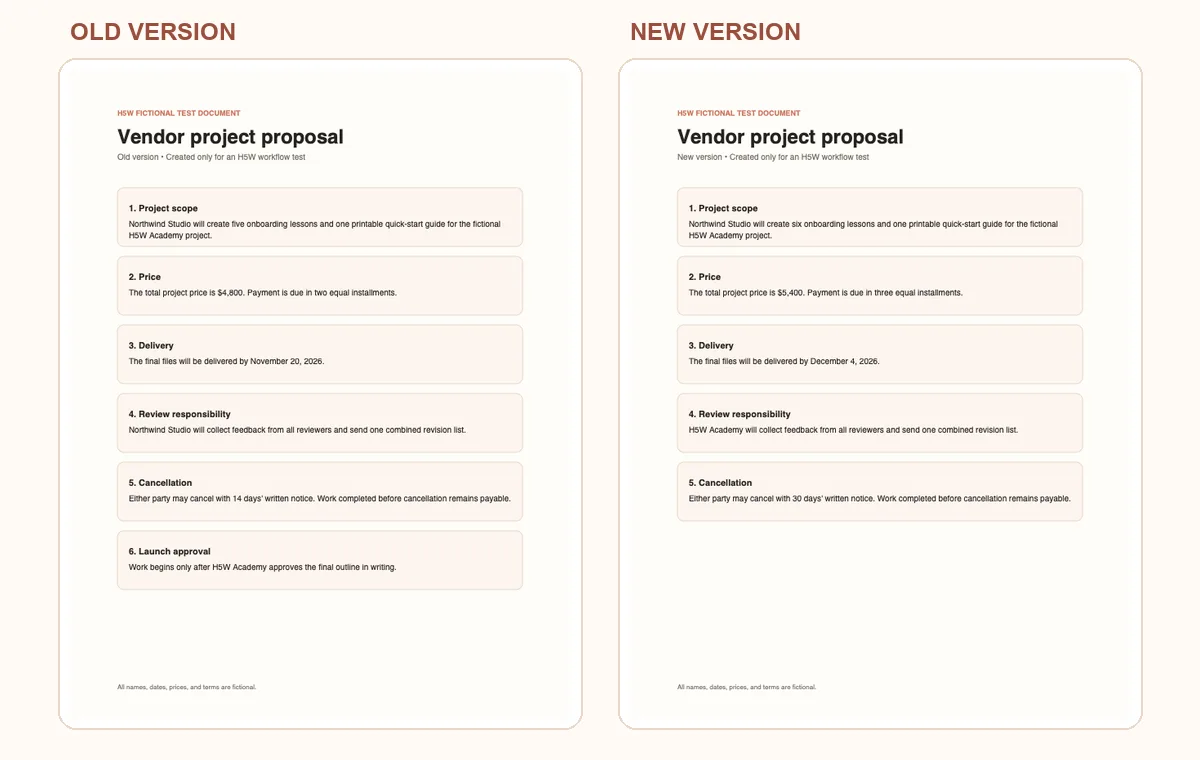
The AI found every planned change, including the deleted approval condition. It also said that the unchanged cancellation-payment sentence had not changed and did not invent a replacement start condition.
We pasted the document text into a signed-out AI chat because file uploads required an account. This checks whether the prompt produces a useful comparison; your own upload controls and limits can still depend on the tool and account you use.
What to check yourself
AI is useful for finding likely changes, but it should not be the final authority. It may miss a footnote, misread a table, or describe similar wording as if it were identical.
Check these items in both originals:
- Numbers: prices, totals, percentages, quantities, and penalties.
- Dates: deadlines, renewal dates, notice periods, and effective dates.
- Responsibility: who must do something, approve it, or pay for it.
- Conditions: words such as “unless,” “except,” “only if,” and “subject to.”
- Added or removed text: especially entire clauses, rows, footnotes, or appendices.
- Negatives: a missing “not” can reverse the meaning of a sentence.
For an important report, contract, policy, or paper, always compare key numbers and conclusions with the original text. If the document affects legal rights, employment, healthcare, taxes, or a large purchase, have the appropriate person review it too.
A useful second question
After the first comparison, ask one narrower question:
Now list only the changes that could affect cost, deadlines, responsibility, cancellation, renewal, or permission. Include the page or section for each one.This second pass is often more useful than asking for an even longer general summary. You can also replace the list with the thing you care about, such as grading rules, project scope, delivery dates, or refund terms.
If the result is too vague
Long documents can contain more detail than an AI can handle accurately in one pass. If the answer is incomplete:
- compare the table of contents or section list first;
- identify the sections that changed;
- upload or paste only the matching old and new sections;
- compare one section at a time.
Label pasted text clearly:
OLD VERSION — Section 4
[paste text]

NEW VERSION — Section 4
[paste text]
This fallback also works when file uploads are unavailable or the files exceed your account's limits.
Scanned PDFs need OCR first
A scan is a picture of a page. It may look readable to you while containing no searchable text for the AI to compare.
Try selecting a sentence or searching for a word in the PDF. If that does not work, use an OCR tool to create a searchable text layer. Adobe Acrobat, for example, provides Scan & OCR > Recognize Text.
OCR is not perfect. Blurry pages, handwriting, small print, and unusual layouts can produce errors. Review important names, dates, and numbers after OCR before trusting the comparison.
Protect private information
Do not upload a document just because an AI tool accepts it. Remove information the comparison does not need, and follow your workplace, school, client, or professional rules.
Be especially careful with identity documents, medical information, bank details, employee records, confidential contracts, and files that belong to someone else. If you use ChatGPT, note that deleting a chat and deleting a file saved in Library can be separate actions.
Use H5W's guide to remove personal information before uploading a file and the document-upload safety checklist before using a sensitive document.
The bottom line
Use AI to create a map of the changes, not to replace the original documents. A clearly labeled pair of files, a specific prompt, and one focused follow-up question will usually get you farther than a long technical workflow.
If you only need to understand one document, use the guide to summarize a PDF with AI. If you want to use the main method above, see the H5W ChatGPT guide.
Sources and verification
Information last verified: October 9, 2026.
- OpenAI: Uploading files and audio to ChatGPT
- OpenAI: Chat and file retention in ChatGPT
- Anthropic: Upload files to Claude
- Google: Upload and analyze files in Gemini Apps
- Adobe: Recognize text in scanned PDFs
H5W hands-on check: the comparison prompt was tested on October 9, 2026, in a signed-out Perplexity chat using only the two fictional documents shown above. The result identified all seven deliberate text changes across six sections.
Free printable resource
AI File Upload Safety Checklist
Use the practical version while you work. It is a selectable-text U.S. Letter PDF with no email gate.
Public H5W PDF with selectable text and permanent source links.
Keep going
Choose your next step
Return to Summarize for the full collection, or continue with a closely related guide.