
How to Use ChatGPT Library to Find and Reuse Your Files
You uploaded a PDF last week, or ChatGPT created a spreadsheet for you, but you cannot remember which conversation contains it.
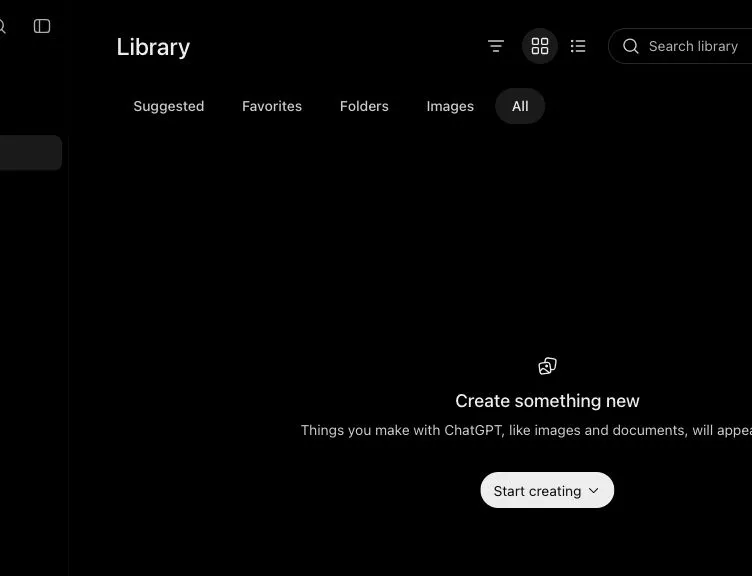
Open Library from the ChatGPT sidebar, search or browse for the file, then add it to a new conversation. You do not need to find the original chat or upload the same file again. Before reusing it, check that you selected the right version and that it does not contain information you should not share.
Library availability depends on your plan, account, region, and workspace settings. Connected Google Drive, Box, Dropbox, and SharePoint files may also appear when the matching app connection and permissions are available.
Find and reuse a file
1. Open Library
On ChatGPT web, look for Library in the left sidebar. If it is not there, check that you are in the intended account and workspace. The feature may still be rolling out or may be disabled by an administrator.
2. Search by something you remember
Use the filename when you know it. Otherwise try a plain phrase describing the file, its subject, or when you used it.
Open the result and check the preview, date, and source. Similar filenames such as report-final.pdf and report-final-2.pdf are easy to confuse.
3. Add it to a new chat
Use Add from Library in the composer or mention the file where supported. Then state the task you want to complete. For a connected Drive file, ChatGPT may keep a link to the original so you can return to it.
4. Ask for a result you can verify
#### Copy this prompt
Use [FILE NAME] as the only source.

Create [OUTPUT YOU WANT] for [AUDIENCE OR PURPOSE].
Include [REQUIRED SECTIONS OR FIELDS].
For every important number or claim, give the page, sheet, slide, or section where you found it.
If the file does not contain an answer, say "Not found in the file" instead of guessing.
End with a short list called "Items I should verify."
Replace these fields: [FILE NAME] with the exact Library item; [OUTPUT YOU WANT] with a summary, comparison, checklist, or draft; [AUDIENCE OR PURPOSE] with who will use it; and [REQUIRED SECTIONS OR FIELDS] with the details you need.
H5W prepared this prompt with a small fictional document, but ChatGPT's browser check failed before the file could be added to Library. Treat the prompt as not yet tested in Library and start with a non-sensitive file. The important checks are whether the answer cites the right part of the file and whether it says when information is missing.
What Library saves
OpenAI says Library can include files you upload and files created in ChatGPT. Connected cloud files remain governed by their original provider and permissions.
This is useful for recurring work such as:
- comparing this month's report with last month's;
- reopening a class handout;
- reusing a blank template;
- asking follow-up questions about a PDF;
- finding a spreadsheet ChatGPT created.
Library is storage and access, not version control. If accuracy matters, confirm the filename, date, and source before using it.
Privacy, deletion, and sharing
Deleting a chat and deleting a saved file are not always the same action. OpenAI's current Library help explains that files saved to Library remain available until you delete them there. Connected Drive files must be managed in Google Drive rather than deleted from ChatGPT.
If Library sharing is available, check who has Viewer or Editor access before adding confidential material to a shared folder. A file uploaded to someone else's shared folder belongs to that folder's owner, and it may remain there if your access is later removed.
For personal ChatGPT accounts, uploaded content may be used to improve models when Improve the model for everyone is on. Read the current data controls and your organization's rules before storing work, school, health, legal, or financial files.
Do not keep passwords, identity documents, customer lists, private medical records, or confidential contracts in Library just because it is convenient.
If you do not see Library
Try these checks:
- confirm you are signed in to the correct account;
- switch between personal and managed workspaces if you use both;
- open ChatGPT on the web, because connected-provider support may reach web before mobile;
- ask your workspace administrator whether Library or connected apps are disabled;
- use the original chat search or upload the file again if the feature is not available.
To work with a long file, continue with How to Summarize a PDF With AI. To check two versions, use How to Compare Two Documents With AI.
Sources and verification
Information last verified: October 20, 2026.
- OpenAI: Using Library to manage files in ChatGPT
- OpenAI: ChatGPT release notes
- OpenAI: File uploads FAQ
Keep going
Choose your next step
Return to Organize & Plan for the full collection, or continue with a closely related guide.